shopify barcode scanner

A Shopify barcode scanner workflow for counts and deliveries

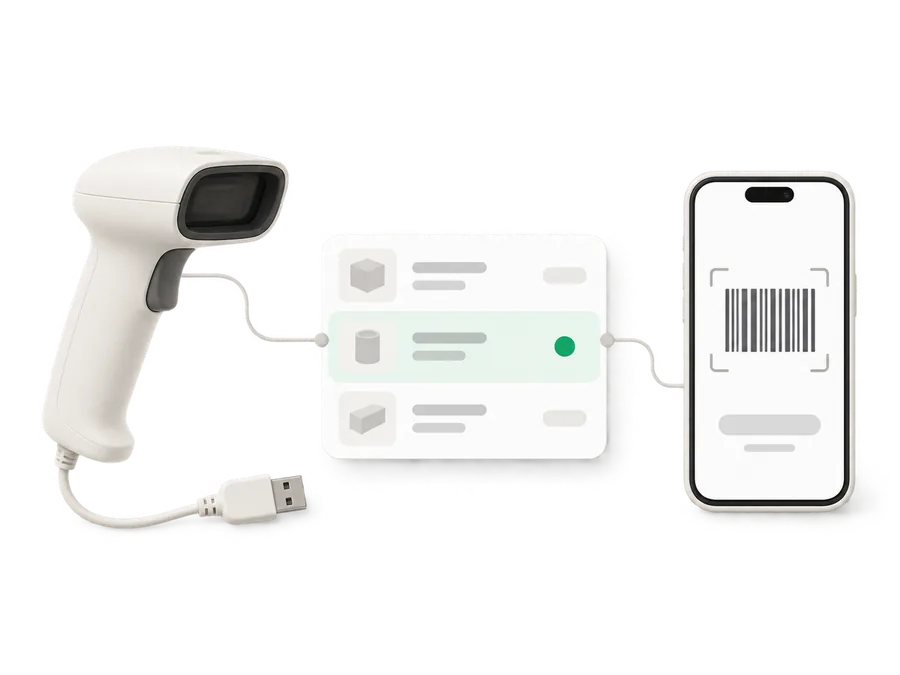
Typing product names while unpacking a mixed box is fiddly, especially when the variants look alike. Binly lets you scan incoming units and count existing stock, with phone camera or USB barcode scanner support for stock counts and one tap updates to Shopify.

Free plan available. 7-day free trial on paid plans, no card required.

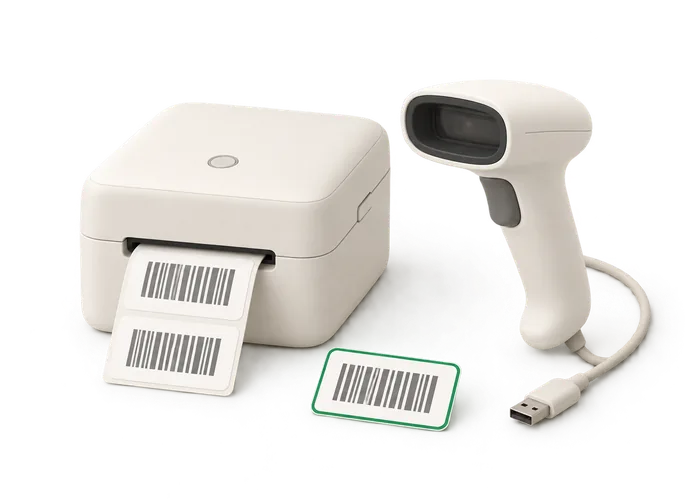
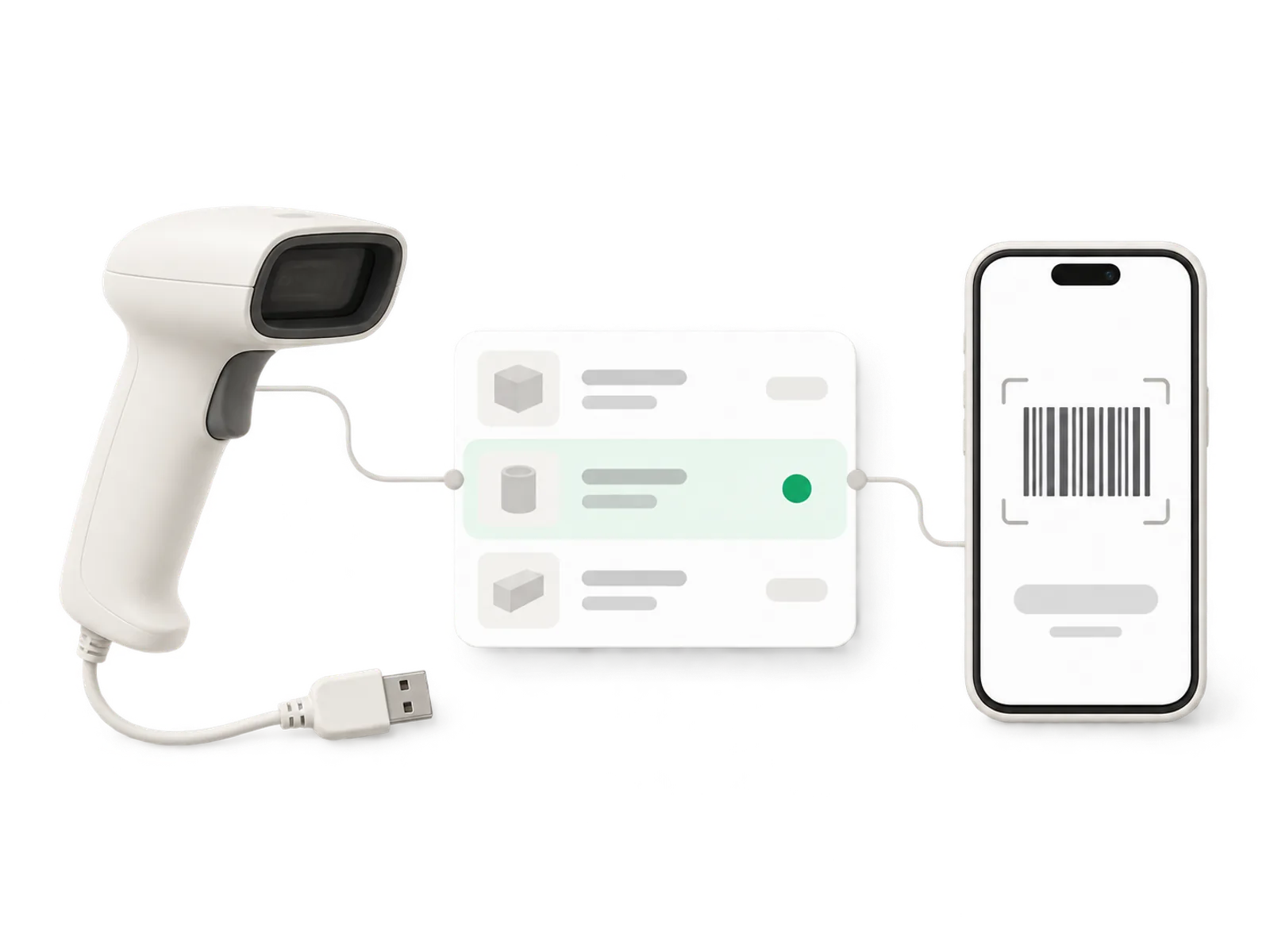
Illustration of a USB barcode scanner and a phone both feeding scans into one shared inventory list card
Live ยท scan to update
21,000

variants synced in under a minute

100,000+

lines counted in a single stocktake

7

days of Pro, free on install

How it works

Built around the shelf you are looking at

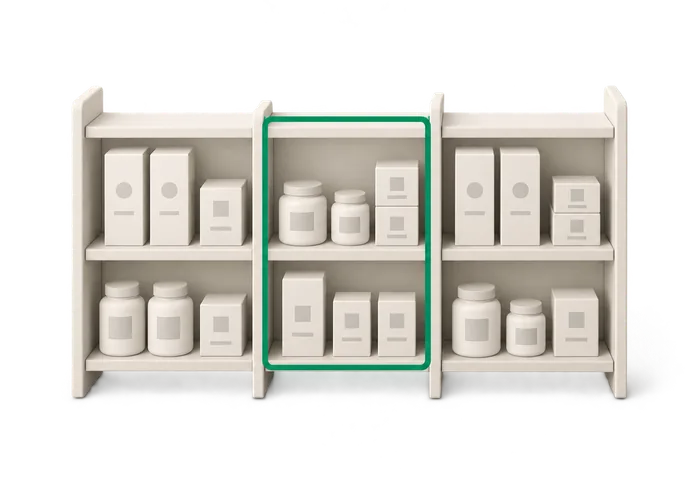
Illustration of a shop shelf split into a counted section and an uncounted section

Choose the scanning job before you start

Counting a shelf and receiving a delivery answer different questions. At a beauty store, a shelf count asks how many bottles are physically there. Receiving asks how many bottles have just arrived in the supplier's box. Mixing those jobs up is a problem even if every barcode scans correctly. Binly supports both workflows. For a stock count, you count the relevant products, review a variance report and apply the result to Shopify.

  • For receiving, you scan every incoming unit, each scan adds one.
  • When choosing a barcode scanner inventory app, look beyond whether it recognizes a label.
  • Check what the scan does to the quantity and when the update happens.
Read more

For receiving, you scan every incoming unit, each scan adds one, and one tap writes the new quantities to Shopify. When choosing a barcode scanner inventory app, look beyond whether it recognizes a label. Check what the scan does to the quantity and when the update happens. For example, keep the new shampoo delivery separate from the shelf you are counting until you have decided how to handle it. Clear physical separation makes it easier to use the right workflow and understand the final numbers.
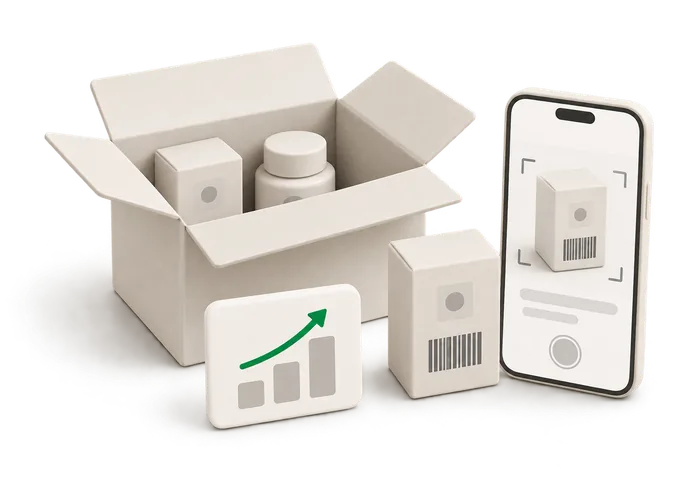
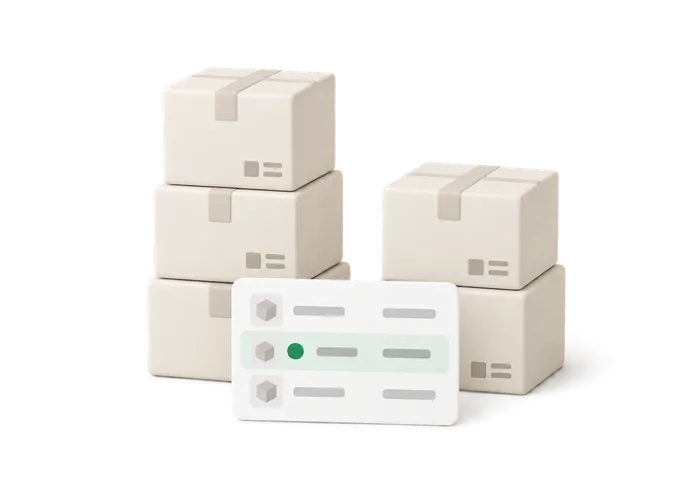
Illustration of an open delivery box being scanned unit by unit

Receive a mixed box one unit at a time

Suppose a craft store receives a box of yarn in several colors. The packing slip is useful, but the box in front of you is what you need to receive. Open it and scan the units that actually arrived. The receiving sequence in Binly is: Start receiving, either on its own or inside a purchase order. Scan each incoming unit, with every scan adding one.

  • Use one tap to write the new quantities to Shopify.
  • Scan every unit rather than treating one scan as an entire case.
  • Binly purchase orders support partial deliveries too.
Read more

Check that you have worked through the whole box and recorded what arrived. Use one tap to write the new quantities to Shopify. Scan every unit rather than treating one scan as an entire case. That distinction matters when the box contains a mixture or the supplier has sent less than expected. Binly purchase orders support partial deliveries too. If the remaining yarn is coming later, you can handle the delivery that is here now. The receiving task follows the physical box, rather than assuming the full order arrived together.

Illustration of a variance report card with one flagged row before it is applied

Use your phone on the aisle or a scanner at the desk

A barcode inventory app should fit the way stock reaches your hands. Imagine a shoe store counting shelves in a narrow stockroom. A phone camera lets the person counting move to the boxes. At a desk, where another person brings products over, a USB barcode scanner may feel more natural. Binly supports both methods for stock counts. You can count a single shelf, a section or the whole store, and several people can count at once.

  • Agree which areas each person covers before they begin.
  • Do not choose equipment just from the size of the catalog.
  • Try a representative section first.
Read more

Agree which areas each person covers before they begin. Do not choose equipment just from the size of the catalog. Think about the actual work: reaching a high shelf, checking a shoebox label, or handling a pile of items at the counter. Try a representative section first. Whatever you use to scan, the stock count still ends with a variance report before anything changes. Hardware is one part of the routine. Checking an unexpected difference remains part of the job.

Illustration of a sheet of barcode and price labels being printed

Add barcodes where your products have none

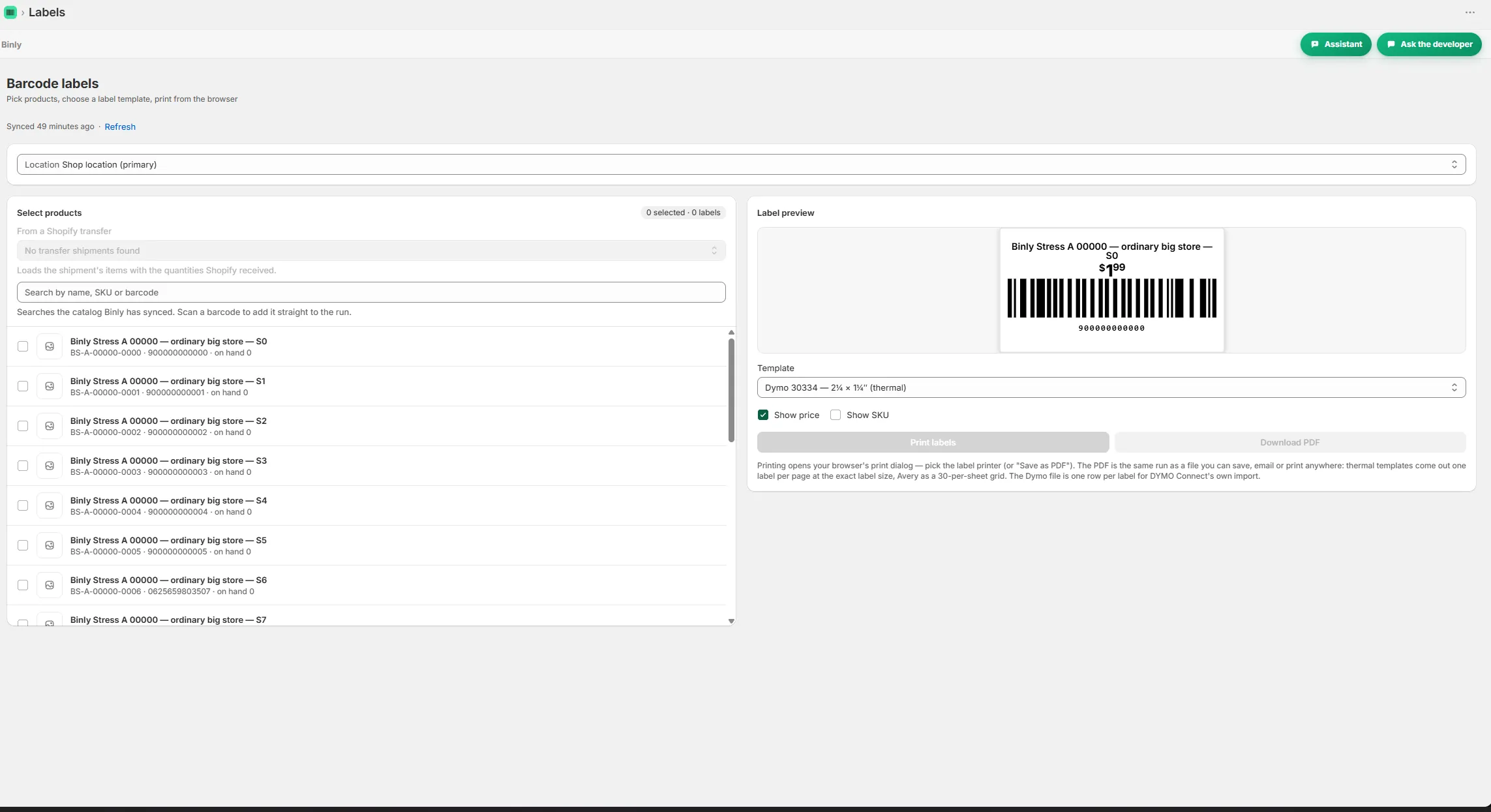
A gift store might carry packaged candles with supplier barcodes alongside handmade ornaments with none. Without labels on the ornaments, the team needs another way to tell similar products apart during stock work. Binly includes labels with barcode generation for products that have no barcode. Before counting that display, get the unlabeled products organized with the right labels. Keep different variants separate while you do it.

  • Do not leave every missing label until the evening of the full count.
  • For a larger catalog, Binly has synced 21,000 variants in under a minute.
  • Counts of more than 100,000 lines also run in production.
Read more

A readable barcode is only useful when it belongs to the item in your hand. This is a practical part of Shopify barcode inventory work: prepare the products, scan the right units, then check the outcome. Do not leave every missing label until the evening of the full count. For a larger catalog, Binly has synced 21,000 variants in under a minute. Counts of more than 100,000 lines also run in production. Those are specific examples of scale, not a promise that every label preparation or physical count finishes quickly.

Start to finish

From install to your next reorder

Start

Start receiving, either on its own or inside a purchase order.

Scan

Scan each incoming unit, with every scan adding one.

Check

Check that you have worked through the whole box and recorded what arrived.

Use

Use one tap to write the new quantities to Shopify.

Inside Binly

See the screen behind the workflow

Click a tab to see that screen inside Binly.

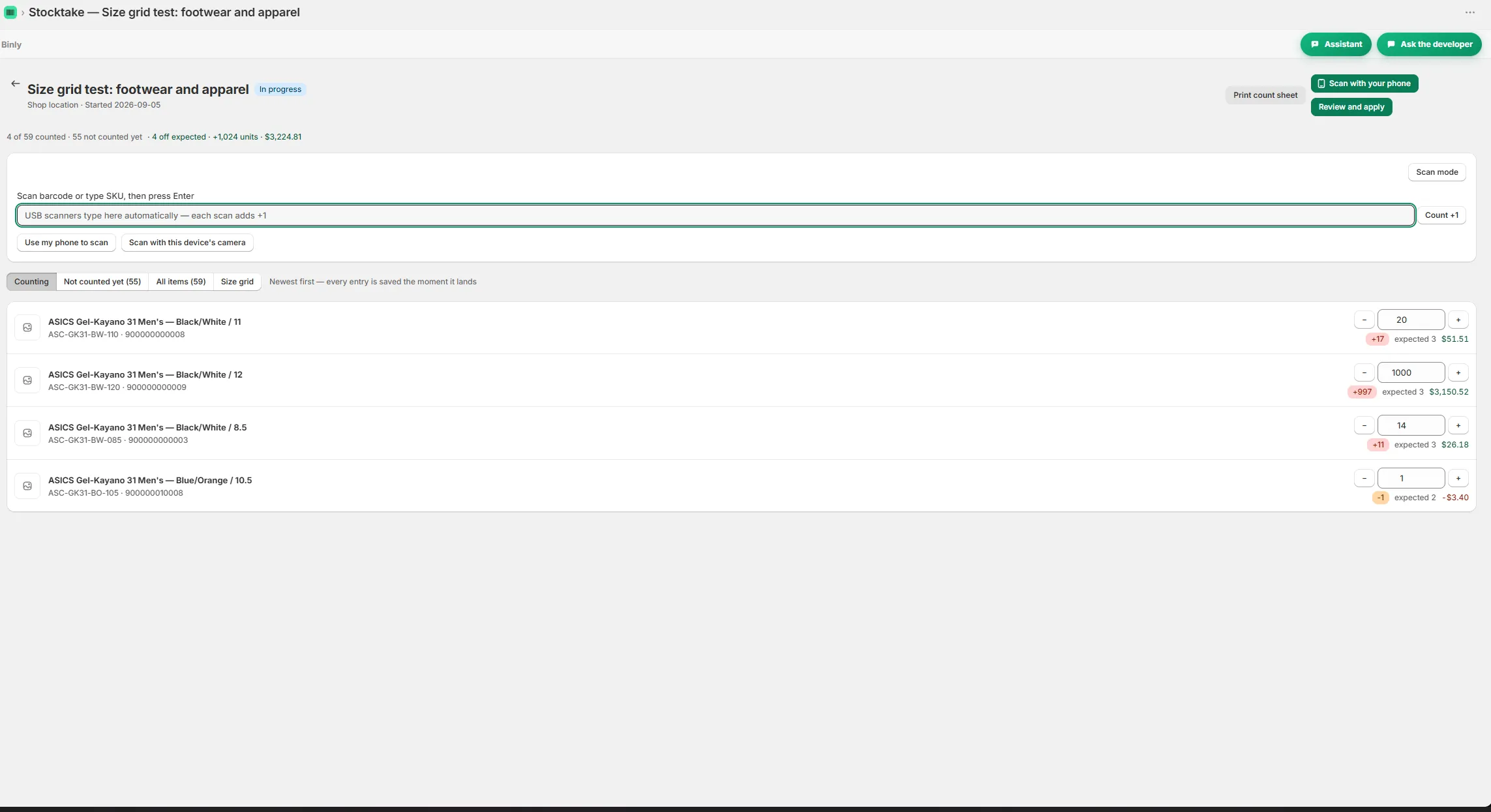
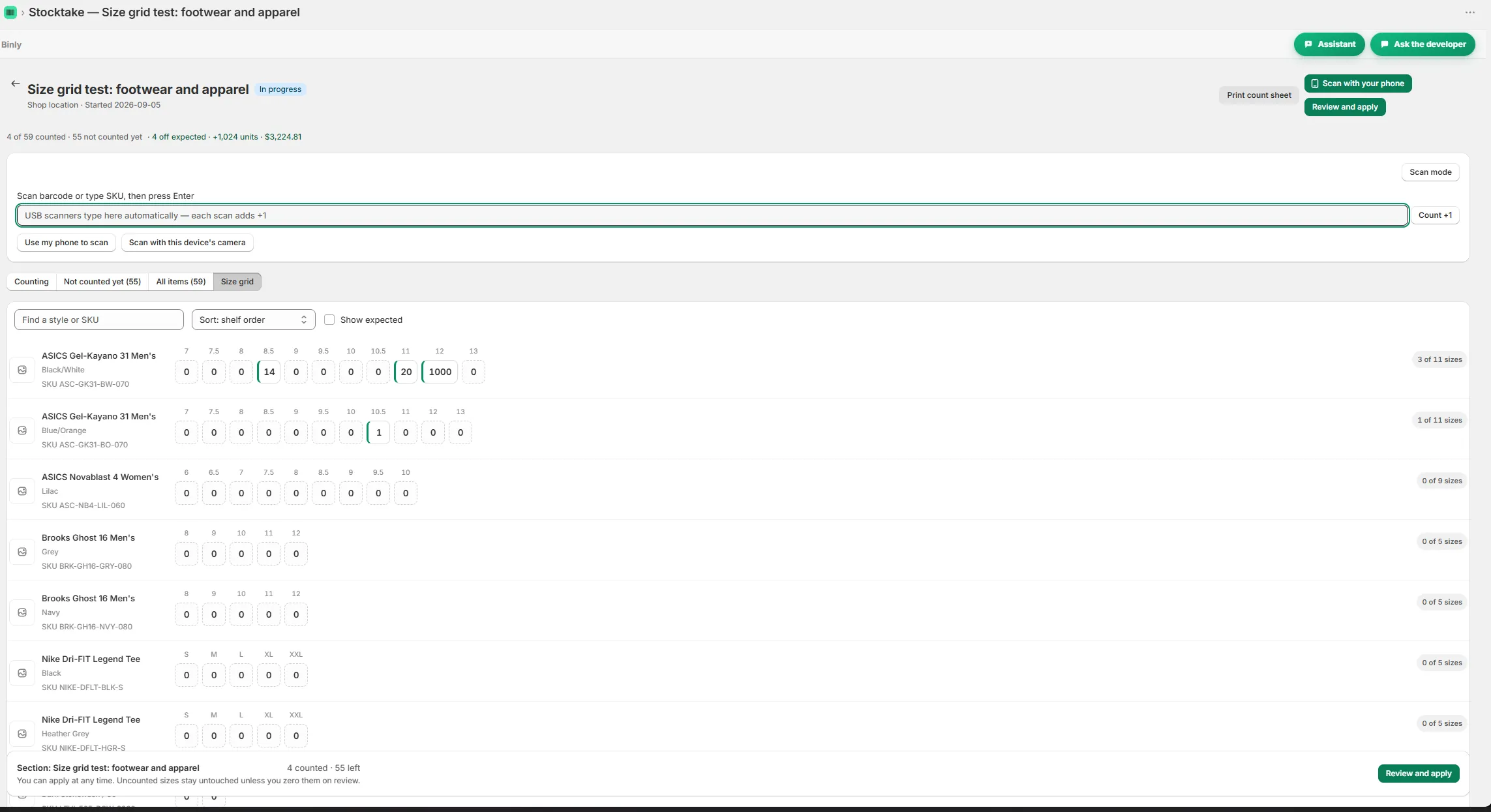
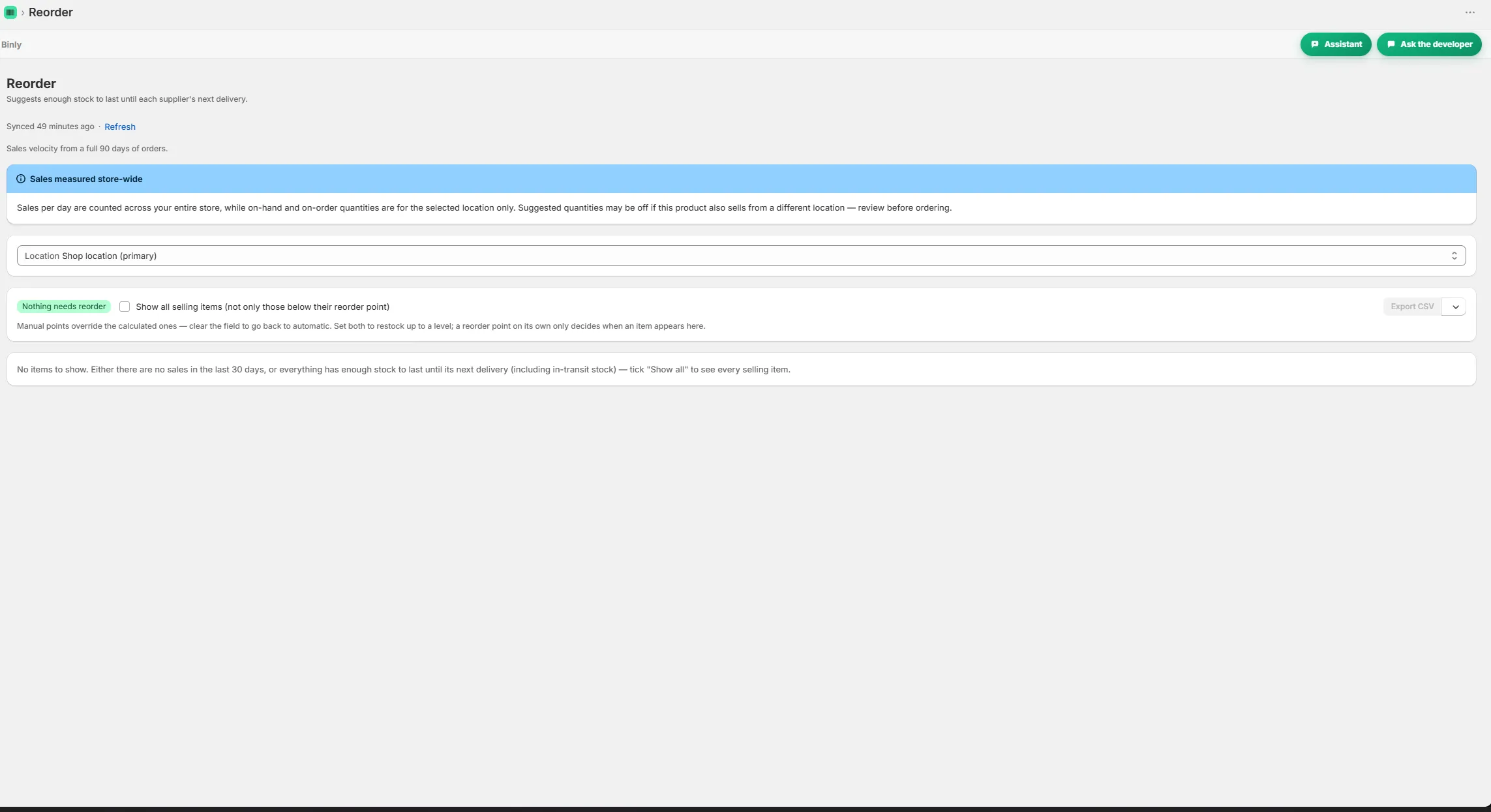
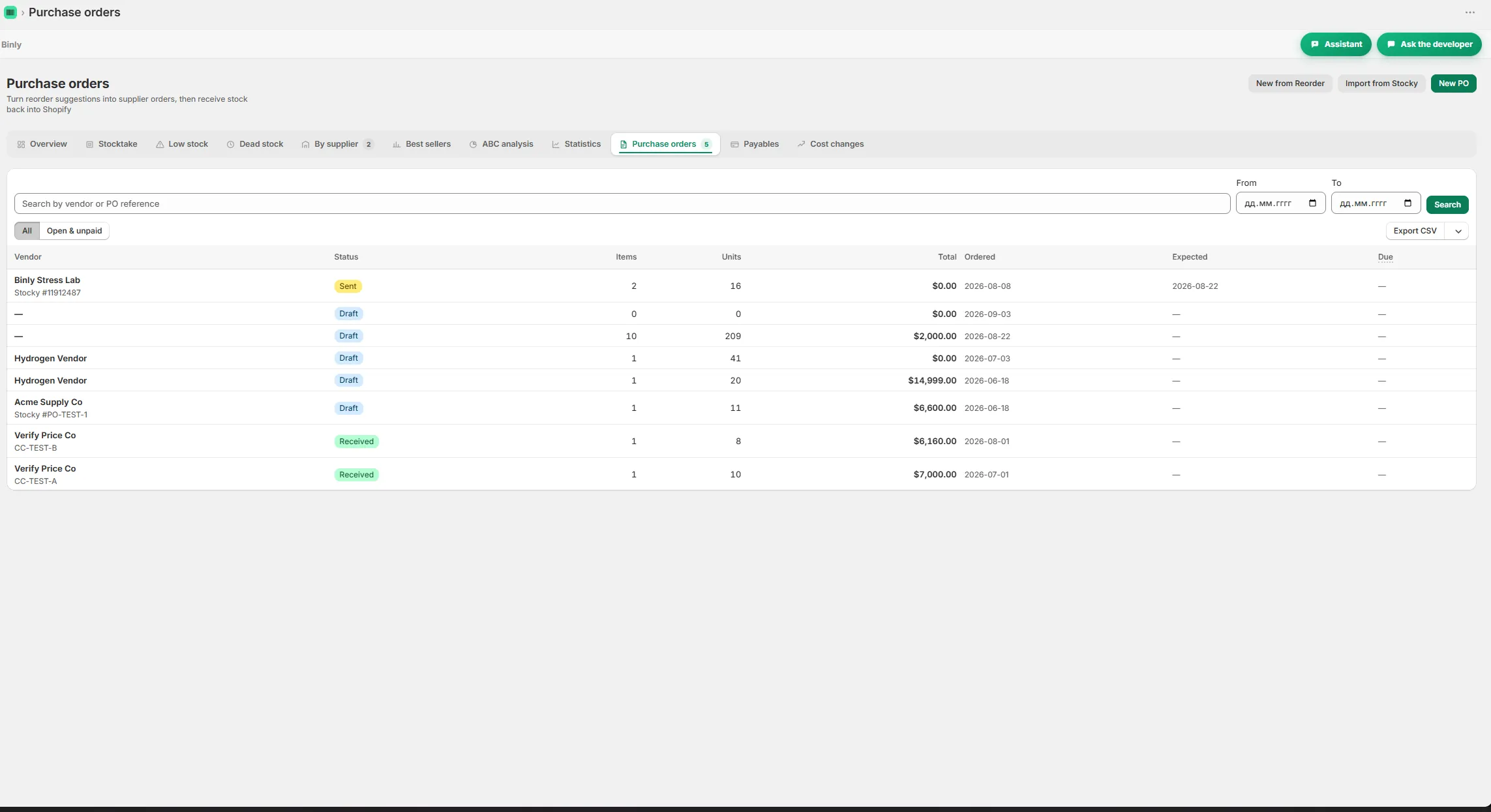
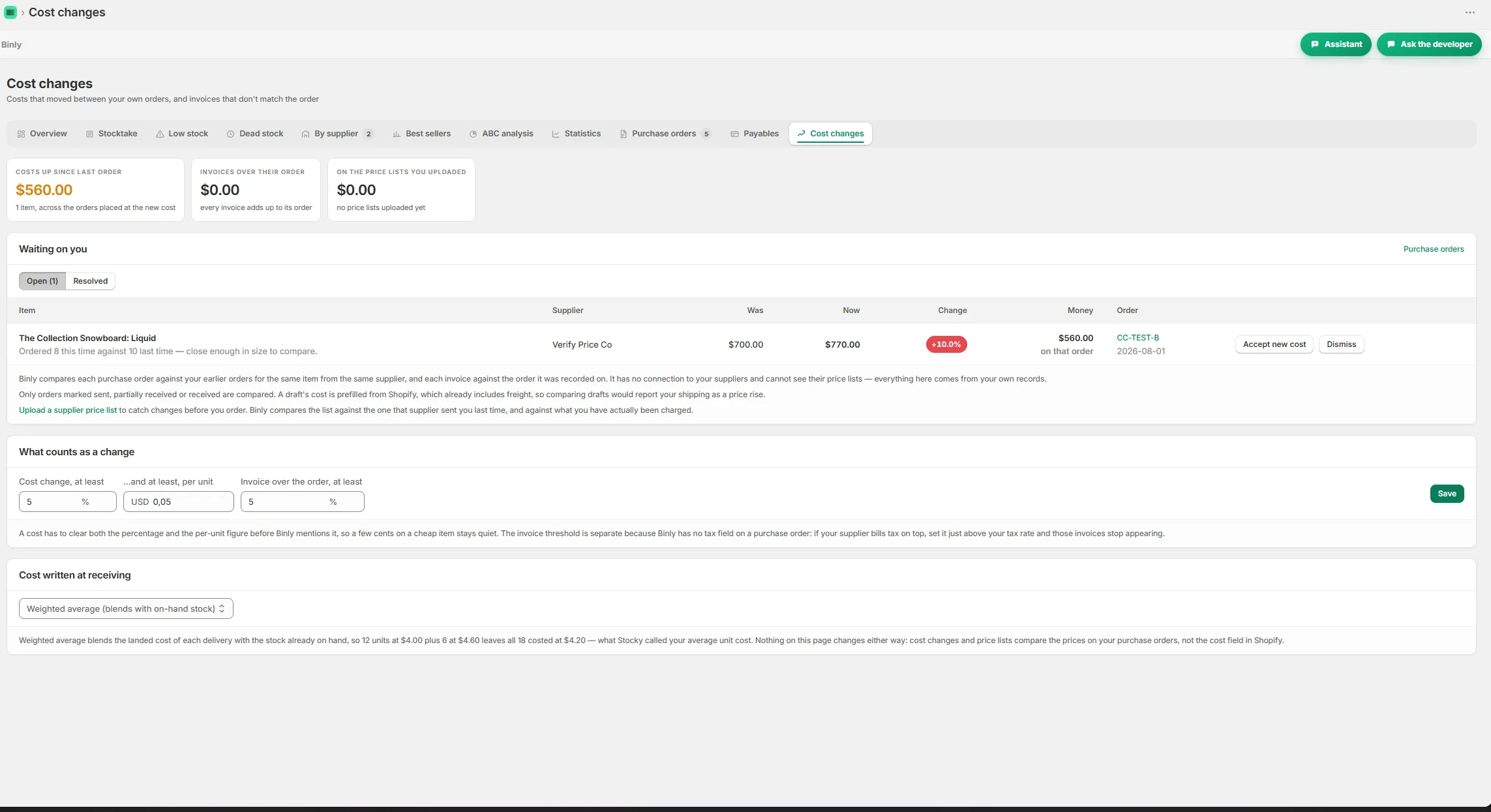
Counting a shelf with live variance while scanning Size grid view for counting variants by size Reorder suggestions grouped by supplier with lead times A purchase order with receiving and a partial delivery Barcode and price labels ready to print A cost change alert comparing supplier prices

Pricing

Simple, honest pricing

Choose from Free for small shops, Starter at $19/month or $190/year, Pro at $39/month or $390/year, and Growth at $99/month or $990/year. Installation includes a 7 day Pro trial. A small store evaluating barcode counts should check Free first; consider Starter if its required workflow needs a paid plan. Confirm receiving and label feature access before choosing. Cancel any time, with no contracts.

Starter

Everything a single location store needs.

$19/mo

or $190/yr

  • Up to 500 products, one location
  • Unlimited stocktakes with barcode scanning
  • Purchase orders, suppliers and receiving
  • Barcode and price label printing
Start 7-day free trial

Pro

For larger or multi location stores.

$39/mo

or $390/yr

Everything in Starter, plus

  • No catalog cap, every product you have
  • All your locations plus stock transfers
  • Landed cost and weighted average cost
  • Inventory value report (CSV)
Start 7-day free trial

Growth

For stores that live by their purchase orders.

$99/mo

or $990/yr

Everything in Pro, plus

  • Supplier price lists and cost change alerts
  • Order by dates from real supplier lead times
  • Month end COGS pack
  • Done for you Stocky migration
Start 7-day free trial

Prices in USD, billed through Shopify. Change or cancel any time, no contracts.

FAQ

Questions people ask before they install

Can I scan inventory instead of typing it into Google Sheets?

Binly lets you count with a phone camera or USB barcode scanner, review variances and apply the finished count to Shopify. That can replace a counting routine built around typing into a spreadsheet and then copying quantities across. You can still use Google Sheets for separate notes or planning if that suits you.

Does Binly work for Shopify POS inventory?

Yes. Binly works with Shopify POS stores and supports multiple locations. Use its stock counting workflow for physical inventory checks and its receiving workflow for incoming units. A checkout scan and an inventory task have different purposes, so plan which job you want to test when you install the app.

Can I use my phone instead of buying a USB scanner?

Yes, stock counts support a phone camera as well as a USB barcode scanner. You can begin with a phone and try a shelf count before deciding whether a scanner would suit your routine. A phone may fit walking the aisles, while a USB scanner may fit a fixed counting spot.

What if some of my products do not have barcodes?

Binly includes labels with barcode generation for products that have none. For example, you can prepare labels for unlabeled gift items before counting their shelf. Make sure each label belongs to the correct product or variant. That physical preparation matters because a scan cannot correct a label attached to the wrong item.

Does one receiving scan add a unit or a whole box?

Each receiving scan adds one unit. Scan every unit from the incoming box, then use one tap to write the new quantities to Shopify. This also works inside a purchase order. If a supplier sends only part of the order, Binly purchase orders support receiving that partial delivery.

Try it on a real shelf today

Put the scanning workflow to work on your next shelf check or delivery.

Install free on Shopify Free to start · Starter $19/mo · Pro $39/mo · Growth $99/mo · Cancel any time
Illustration of a USB barcode scanner and a phone both feeding scans into one shared inventory list card