Exporting from Stocky:
what still works after the shutdown
Short answer. In Stocky, open Purchase Orders, click Export All and choose CSV. Stocky shut down on August 31, 2026, and its APIs no longer respond. A file you saved is your only copy of the history. Binly imports purchase orders and reorder points from that CSV, recreates suppliers from the names on those orders, and waits for your approval before anything changes in Shopify. If you never exported, what lived only in Stocky is gone. Products and stock levels still sit in Shopify. Next: the Stocky alternative page. Last updated October 21, 2026.
Exact, click-by-click steps to export your purchase orders, stocktakes, and inventory reports from Stocky as CSV, plus what can't be exported at all, and what to do about it.
Nothing transferred automatically when Stocky shut off, what you exported is what you have.
What to export
Purchase orders (bulk and individual), plus stocktakes and inventory reports, all export as CSV. Supplier records don't, those had to be copied down by hand before the shutdown.
What you have now
Stocky stopped working entirely on August 31, 2026. Nothing carried over automatically, so what you exported is what you have, and supplier records were never exportable.
Import into Binly
Bring your purchase order CSV into Binly's “Import from Stocky” tool, and it matches each line to your Shopify products automatically, nothing re-keyed by hand.
Where your CSVs end up
One dashboard, once you're done exporting
After the export, this is what you're importing into, stock levels and low-stock items at a glance.
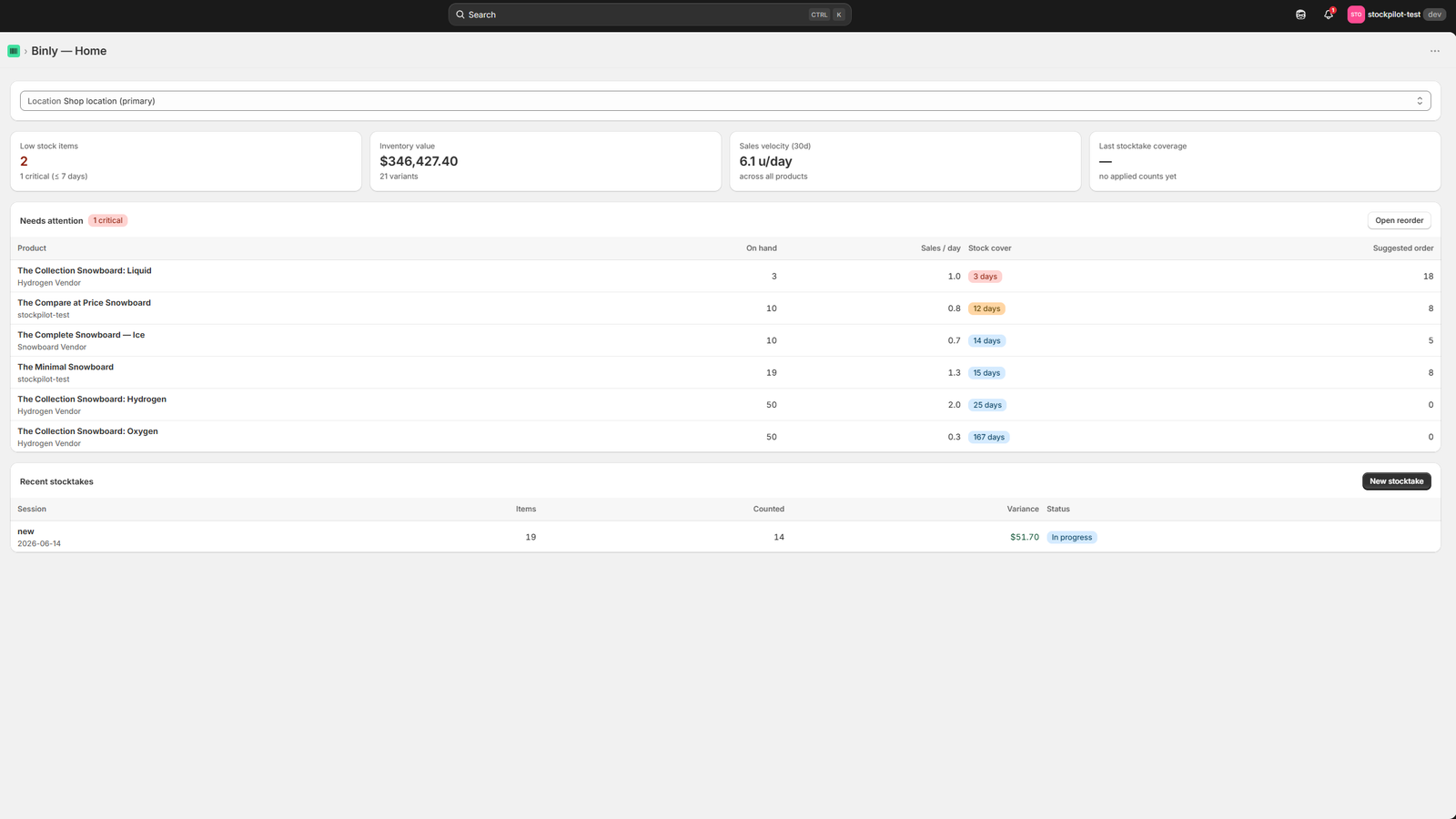
Click to enlarge
The Binly dashboard: where your exported Stocky data lives once it's imported.
Stocky stopped working entirely on August 31, 2026, and Shopify has been clear that historical data does not migrate automatically once it's switched off. That means every purchase order, stocktake, and supplier record that was sitting inside Stocky had to be pulled out manually before that date, and what was not exported is now inaccessible. The good news is that most of what mattered could be exported as a CSV file in a few clicks. The steps below cover exactly where to click, in order, and what each file is good for.
Before you start
What can, and can't, be exported
Suppliers are the one thing that could not be exported.
Purchase orders
Exportable in bulk (all POs in one CSV) or individually by email. Includes PO numbers, line items, quantities, costs, and dates.
Stocktakes & inventory reports
Exportable as CSV directly from Stocky's reports section, your stocktake history and inventory audit data.
Suppliers & ordering rules
Not exportable at all. Names, contacts, lead times, and demand-planning settings need to be copied down by hand.
Step by step
Exporting your data, one step at a time
Three exports cover almost everything. Here's exactly where to click.
Export all your purchase orders in bulk
This single export gives you every PO in one file: PO numbers, line items, quantities ordered and received, costs, and dates. Do this first, it covers the bulk of your historical PO data in one go, and it's the file you'll actually reuse later when you import into a new tool.
Export an individual purchase order
Use this when you want a specific PO saved as its own file, for example, tied to one supplier or one email thread, or if you want a copy in your inbox as a record of what was ordered and when. Repeat for any PO you want kept individually.
Export stocktakes and inventory reports
Export your stocktake history and inventory audit reports the same way, directly from Stocky's reporting area. These are mostly for your own records, you likely won't need to re-import stocktake history into a new tool, since counts start fresh against your current Shopify inventory.
Copy down your supplier records manually
Supplier records, ordering rules, and demand-planning settings cannot be exported at all. Write down supplier names, contacts, lead times, and MOQs from whatever you still have (saved screens, old purchase orders, emails), going supplier by supplier so you don't miss one.
| Data type | Exportable? | How | Where it goes next |
|---|---|---|---|
| Purchase orders (bulk) | Yes | Purchase Orders → Export All → CSV | Import into your new PO tool |
| Individual purchase order | Yes | Open PO → Send → your email → Attach CSV → Send | Keep alongside supplier correspondence |
| Stocktakes & inventory reports | Yes | Stocky's Reports → export CSV | Archive for your own records |
| Suppliers, ordering rules, demand-planning settings | No | Not exportable: copy manually | Re-enter in your new tool by hand |
2026-07-10_PurchaseOrders.csv, so you can find anything later without opening it.
The big picture
From Stocky to Binly, in three steps
Every export above boils down to this: get the CSVs out, clean them up, then bring them into your next tool.
Export CSVs from Stocky
Purchase orders, stocktakes & reports
Clean & map columns
Match SKUs, costs & quantities
Import into Binly
Draft purchase orders, auto-matched
What to do with the CSVs
Your exports, put to use
Most of these files are for your archive. One of them, you'll actually use again.
Purchase order CSV
Import it into Binly's Purchase Orders screen (“Import from Stocky”). Binly matches each line to your Shopify products by SKU or barcode and creates draft purchase orders for you to review, nothing needs to be re-keyed by hand, and you can adjust quantities or costs before confirming. See our full purchase order tools.
Stocktake & inventory CSVs
These are for your own archive. Binly counts live against your current Shopify inventory, so you don't need historical stocktake data to start your first count, just keep the files somewhere safe in case you need to reference past variance for accounting or insurance purposes.
Supplier notes
Re-enter your manually recorded supplier names, contacts, lead times, and MOQs into your replacement tool once you've picked one. This is the only part of the process that can't be automated, so build in a little extra time for it. See our full Stocky alternative comparison if you haven't chosen yet, or read the full shutdown timeline for the bigger picture.
FAQ
Common questions
Could everything be exported from Stocky before it shut down?
Almost everything. Purchase orders (bulk and individual), stocktakes, and inventory reports can all be exported as CSV. Supplier records, ordering rules, and demand-planning settings cannot be exported at all, those had to be copied down by hand before the shutdown, if you didn't, they're gone.
How do I export all my Stocky purchase orders at once?
In Stocky, go to Purchase Orders, click Export All, and choose CSV. This single file includes PO numbers, line items, quantities ordered and received, costs, and dates.
Can I export just one purchase order?
Yes. Go to Apps, then Stocky, then Purchases, open the PO you want, click Send, choose your own email address, check “Attach CSV,” and click Send. The CSV arrives in your inbox.
Why can't I export my suppliers from Stocky?
It's a limitation of Stocky itself, supplier records, ordering rules, and demand-planning settings were never built with an export option. The only way to preserve them is to copy the details down manually: names, contacts, lead times, and MOQs.
What do I do with the CSV files after exporting?
Keep them organized in dated folders, then import your purchase order CSV into your new tool. Binly, for example, matches each line to your Shopify products and creates draft purchase orders automatically, nothing needs to be re-keyed.
How long does exporting everything take?
For most small to mid-sized stores, exporting all purchase orders and reports takes well under an hour. The only step that takes real time is manually recording supplier details, since there's no bulk export for those, budget extra time in proportion to how many suppliers you work with.
What does Binly import from the Stocky CSV?
Purchase orders, with every line, quantity and ordered cost, plus received and partly received status. Reorder points come across when the export has Min and Max columns. Binly recreates suppliers from the names on those orders. It matches each line to your Shopify products, then waits for your approval before anything goes live. See the Stocky alternative page for the full list.
Use what you saved. Switch calmly.
Get your saved files into Binly today, then set up the rest of your replacement without a scramble.
Start free 7-day trialStill deciding? See the Stocky alternative →