In this article
The must-have Shopify apps for a growing store are the ones your problems call for, added in the order those problems arrive. Start with the one every other app reads from: your stock quantities. First counts and low stock alerts, then receiving and purchase orders, then reviews and storefront tools, then email, shipping and accounting. A badge that says "only 3 left" is quoting an inventory number, so make that number right before you promote anything.
Fix what you sell before you promote it#
Say Shopify shows 9 of a product priced at $24.00, and the shelf holds 4. A reviews widget, an upsell and a back in stock email all point at that product. Nine customers order. Four orders can ship.
- #1001OrderShipped
- #1002OrderShipped
- #1003OrderShipped
- #1004OrderShipped
- #1005OrderRefunded
- #1006OrderRefunded
- #1007OrderRefunded
- #1008OrderRefunded
- #1009OrderRefunded
5 orders refunded · $120.00 back to buyers
Nine orders, four units on the shelf. The other five become refunds.
The apps did nothing wrong. They sent people to a number that was never true.
Every tool further down this page is a way to sell more of what your quantities say you have. If the quantities are wrong, the tools make the mistake bigger and faster. That is why the order below starts with stock, even though stock is the least exciting thing to install.
Essential Shopify apps, in the order we suggest#
Order volume is the trigger for each step. The table is our judgement, based on what each tool reads from the others. It is not a measured result.
- 1Counts and low stock alertsAdd it when: From the first week
- 2Receiving and purchase ordersAdd it when: You reorder from the same suppliers more than once
- 3Reviews and storefront toolse.g. VitalsAdd it when: Traffic is steady and the same products keep selling
- 4EmailAdd it when: You have repeat buyers and know which flows you will run
- 5ShippingAdd it when: Packing and carrier choices eat real time every day
- 6AccountingAdd it when: Month end takes longer than a quiet evening
Each layer reads the numbers of the one below it. The bottom one is your stock.
| Step | Add | Add it when | Why in this position |
|---|---|---|---|
| First | Counts and low stock alerts | From the first week | Every other tool quotes these quantities |
| Second | Receiving and purchase orders | You reorder from the same suppliers more than once | Costs and stock enter your store at receiving, so a mistake here travels everywhere |
| Third | Reviews and storefront conversion tools (or a bundle like Vitals) | Traffic is steady and the same products keep selling | Proof and offers work on products that are in stock and priced right |
| Fourth | You have repeat buyers and know which flows you will run | It needs customers and orders to exist, and its stock flows need correct quantities | |
| Fifth | Shipping | Packing and carrier choices eat real time every day | It pays off per parcel, so it needs volume |
| Sixth | Accounting | Month end takes longer than a quiet evening | It reads what all the others produce: sales, costs, payouts |
It flips if you buy paid traffic from day one. Then conversion tools can come before purchase orders, because every visitor costs you money. Accounting also often starts early, for tax reasons. Ask your accountant when. We do not give tax or accounting advice.
Counts and low stock alerts#
Look for two things in a counting tool: you can count one shelf, supplier or collection at a time, and you can see the differences before anything is written to Shopify. A tool that overwrites quantities the moment you finish is a risk for any store that sells while it counts.
A spreadsheet is enough at the start. We publish a free stocktake sheet and checklist for that. Move to an app when a count takes long enough that sales happen in the middle of it, or when you want a phone camera or scanner to do the typing. Shopify's own count screen is a fair first step too, and we set it next to ours in built-in count vs Binly.
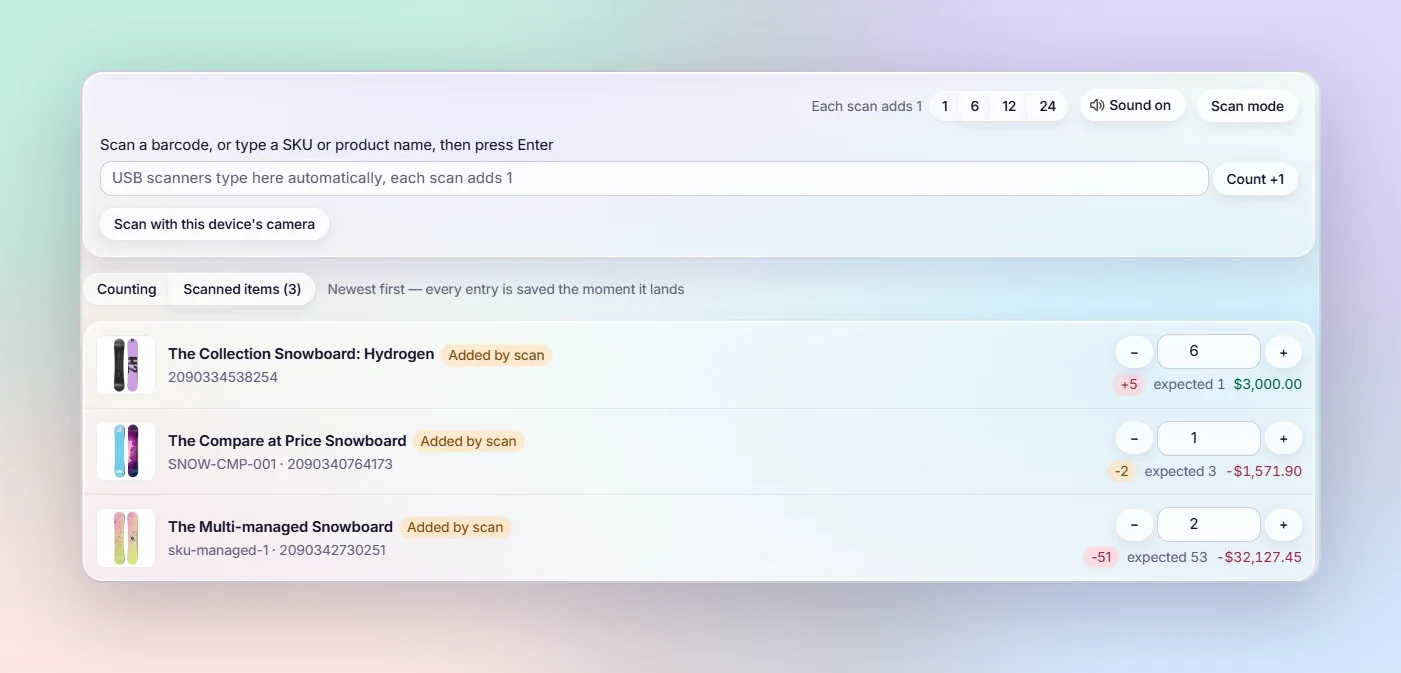
Low stock alerts are the other half. Set the threshold per product, and where the tool allows it, in days of cover and not in units. Ten units of a product that sells one a week is ten weeks of supply. Ten units of one that sells five a day is two days. See low stock alerts for how we handle it.
Receiving and purchase orders#
When a delivery arrives, the quantity and the cost both enter your store. Look for a tool that handles a short delivery without closing the order, keeps damaged units out of stock, and records the cost of each delivery and not a single number per product. A supplier who charges $4.10 one month and $4.45 the next should leave both prices on record. Our receiving guide walks through a short and a damaged delivery with numbers. For the inventory tools themselves, see our page on inventory management for Shopify.
Here is a pattern that wastes weeks. Say a team installs a reviews app, an upsell app and a pop-up app in one week. Conversion falls. Nobody can say which of the three did it. Add one at a time, and leave each for a few weeks before the next.
Storefront conversion tools, and bundles like Vitals#
This group gets the attention, and we still put it third. It covers things like upsells, a cart drawer, a sticky add to cart button, wishlists and pop-ups. Look for a tool that loads quickly, lets you turn each feature off separately, and tells you which offers were taken.
Vitals: one app, 40+ storefront tools
One example of a bundle in this group is Vitals (vitals.app). It describes itself as an all-in-one Shopify app: 40+ tools built by one team, on one subscription. Check their page for current plans and the free trial. These are some of the tools it names:
- Product reviews
- Upsell builder
- Cart drawer
- Wishlist
- Sticky add to cart
- Theme sections
- Visitor recordings
- Back in stock alerts
- Trust and urgency badges
- Volume discounts
The point of a bundle is that list. One install covers a dozen small jobs that would otherwise each need their own app and their own script on your storefront, and you read one bill. Whether it fits depends on how deep you need each job to go, which the next section covers.
Bundle or specialist#
Bundled apps trade depth in each tool for fewer installs. You get one bill, one support contact and one place to look when something breaks. You may give up the extra settings a specialist offers, and a bundle that you remove has to clean up after many features at once, so test that too.
A bundle is the sensible choice when your needs are ordinary: a cart drawer, a few badges, reviews, a wishlist. A specialist is the sensible choice when one tool decides your revenue, such as the email flows of a store that lives on repeat buyers.
Our verdict: use a bundle for the small features and a specialist for the one that carries your business. If email is where most of your sales come from, a dedicated email tool is worth the extra install. If email is a monthly newsletter, the bundled one is probably fine. Test the feature you care about most before you let a bundle replace the app you have. This is a view on the category, not a hands-on review of any one bundle.
Five questions before you install the next app#
Ask these in writing, even if the answer is one line each.
- What number should this move, and how will I see it move?
- What does it read from my store: products, stock, customers, orders?
- How do I switch it off, and what is left behind on my storefront when I do?
- What does it cost over a year, not a month?
- Who answers when it breaks at the worst time?
If you cannot answer the first one, wait. An app with no number attached is a cost you will keep paying and never review.
Email, reviews, shipping and accounting#
Email. Look for a tool that reads customers and orders from Shopify without a manual export, and that can send an abandoned cart message and a back in stock message.
Reviews. Look for requests that go out after the parcel arrives, photo reviews, and a way to show ratings on collection pages. Some bundles include reviews, so check before you pay for two.
Shipping. Look for rates and labels for the carriers you use, tracking messages sent to the customer, and support for more than one location if you ship from more than one.
Accounting. Look for a tool that brings in sales, fees and payouts, and that treats refunds and returns the way your accountant wants. The tool matters less than the habit of closing each month.
Why the storefront side needs the stock side to be right#
Three cases show it.
A back in stock email promises a product to people who waited. If the quantity that triggered it is wrong, the email brings orders you cannot fill.
An "only 3 left" message pushes a hesitant buyer to act, and it is false if the shelf is empty. Vitals' guide to showing "Only X left in stock" on Shopify walks through three ways to do it: an app, your theme's own inventory block, or custom code. It also says the number in the message comes from Shopify's inventory for the variant the shopper selected. That is the right design, and it is also the limit. The message is only as honest as the stock number behind it, and no setting on the message can fix a count that is wrong.
Linen tote, $24.00
The badge reads the count. Fix the count and the badge tells the truth.
A bundle app sells a gift set made of parts. Check whether it takes units from the bundle itself or from its parts, because the answer decides what a count of the parts does to the number you can sell.
Open your catalog, pick the 20 products that sell most, and count those first. Everything else on this page can wait until those 20 numbers are right.
Frequently asked questions#
What are the must-have Shopify apps for a new store?
Set up a counting routine and low stock alerts first, before any promotion tool. Every badge, email and upsell that mentions stock quotes the quantity Shopify holds. If that number is wrong, each new app spreads the error.
How many apps is too many?
We know of no safe number we can cite. A better test is whether you can say what each app does for you and how you would notice if it broke. Add one app at a time and leave it for a few weeks, so a change in sales has one suspect.
Can an all-in-one app replace several apps?
For small features, often yes. Badges, a sticky add to cart button and a cart drawer rarely need a specialist. Bundled apps trade depth in each tool for fewer installs, so keep a specialist for the one tool your revenue depends on.
Do I need an inventory app and an upsell app?
They do different jobs. An inventory app keeps quantities and costs right. An upsell app changes what customers add to the cart. If you can only pick one, pick the one that fixes your biggest problem today: wrong stock, or low order value.
What is the Vitals Shopify app?
Vitals describes itself as an all-in-one Shopify app: 40+ tools built by one team, on one subscription. The tools it names include product reviews, an upsell builder, a cart drawer, a wishlist and back in stock alerts. Check vitals.app for current plans and the free trial.