Multi-location inventory, all on one dashboard
Shopify's own admin will show you stock split by location if you go digging on a product page, but running a stocktake, generating a reorder, or seeing every location ranked by what's low is still a location-by-location chore. Binly puts per-location stock, stocktakes, and reorders on one dashboard.
All-location coverage is part of Binly's Pro plan ($25/mo). Starter ($12/mo) covers your store's primary location.
Stock counts by location
See exactly how many units of a product sit at each of your Shopify locations (a warehouse, a retail store, a pop-up) instead of a single combined number.
Stocktakes scoped to one location
Run a stocktake for a single location without its count getting mixed into another location's numbers, a count at your downtown store stays separate from your warehouse.
Reorders per location
Reorder suggestions are calculated from each location's own sales history, so a fast-moving store and a quiet one aren't treated the same.
See it in action
One dashboard, every location's numbers
The same Binly dashboard whether you're running one location or five.
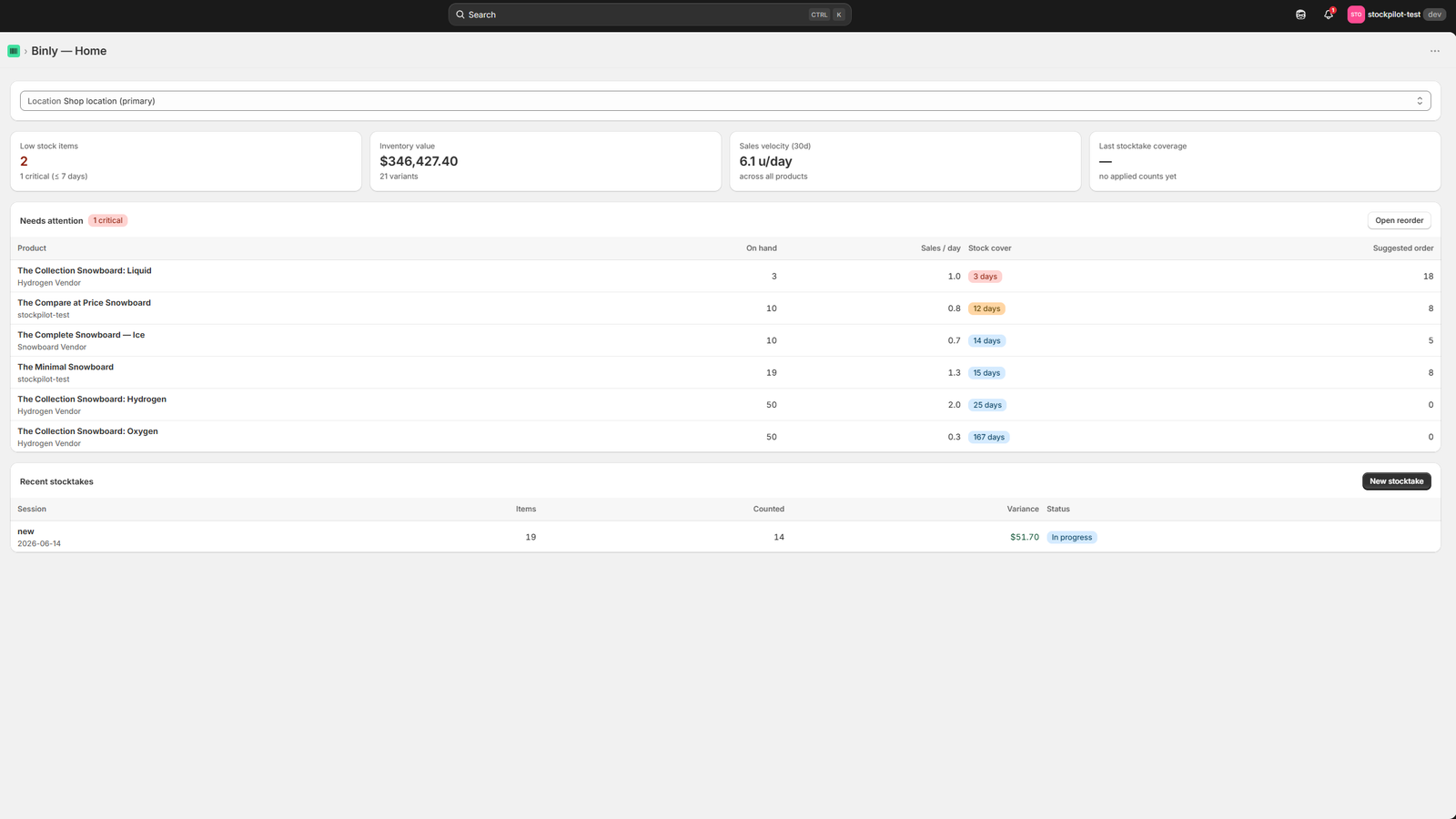
Click to enlarge
The Binly dashboard: stock levels and low-stock items at a glance.
The problem
Shopify shows location detail, but not the whole picture at once
Multi-location stock data already exists in Shopify Admin. Pulling it into stocktakes, reorders, and one clear view across locations is the part that's still manual.
Open a product's Inventory tab in Shopify Admin and you'll see quantities broken out by location. What you won't get from Admin alone is a stocktake workflow, a reorder suggestion, or a low-stock view that already knows which location it's talking about, those still mean checking one location, then the next, then the next.
What Shopify's own admin gives you
- A per-location quantity breakdown on each variant's Inventory tab, if you open it
- A separate Locations list you manage one at a time
- No single ranked view of low stock across every location at once
What that costs you
- Stocktakes and reorders repeated location by location, by hand
- A stockout at one location sitting unnoticed next to surplus at another
- Comparing locations means opening several tabs, not one dashboard
How it works
How Binly handles more than one location
Three parts: stock counts that stay separated by location, stocktakes and reorders scoped to the location you're actually working in, and one dashboard that shows all of it at once.
Per-location stock, not a single total
Every product shows its quantity at each of your Shopify locations side by side, so a warehouse count and a retail count are never combined into one misleading number.
Stocktakes scoped to one location
Start a stocktake and pick the location it's for. Counts from a downtown store stocktake don't touch your warehouse's numbers, and vice versa.
Reorders and POs tied to a location
Reorder suggestions are calculated from that location's own sales velocity, and the purchase order you create from a suggestion is tied to the location it's restocking.
Setup
Set up across your locations in three steps
Install Binly
Add Binly from the Shopify App Store, it reads every location connected to your store automatically, no manual setup per location.
Pick a location to work in
Choose which location a stocktake, reorder, or purchase order applies to. Binly keeps each location's numbers separate from the rest.
Upgrade for full coverage
Starter covers your primary location. Running two or more? Pro unlocks stocktakes, reorders, and stock visibility across every location on your store.
Being upfront
Which plan covers which locations
Multi-location coverage isn't the default, it's a Pro-plan feature, and here's exactly where the line sits.
Starter: $12/mo
- Stocktakes, reorder suggestions, and purchase orders
- Scoped to your store's primary location
- The right fit if you sell and stock from one place
Pro: $25/mo
- Everything in Starter, at every location on your store
- Per-location stock counts, stocktakes, and reorder suggestions
- The plan to pick once you're running more than one location
Coming from Stocky
If you relied on Stocky across more than one location
Stocky's location handling followed your Shopify POS Pro locations. Binly's per-location stocktakes, reorders, and stock counts, on Pro, cover the same ground, plus purchase orders and low-stock alerts.
Stocky itself stopped working on August 31, 2026, so any multi-location workflow you built around it needs a new home now, whichever app you move to.
Pricing
Multi-location coverage, clearly priced
One clear line: Starter for a single location, Pro for every location.
FAQ
Common questions
Does Binly support multiple Shopify locations?
Yes. Binly reads every location connected to your Shopify store. Seeing stock, running stocktakes, and generating reorders at each of those locations is part of the Pro plan, at $25/mo; Starter, at $12/mo, covers your store's primary location only.
What's the difference between Starter and Pro for a multi-location store?
Both plans include stocktakes, reorder suggestions, and purchase orders. Starter scopes all of it to your store's primary location. Pro extends the same tools across every location on your store, with stock counts, stocktakes, and reorders kept separate per location.
Can I run a stocktake for just one location at a time?
Yes, on Pro. Each stocktake is tied to a single location, so a count you take at your downtown store doesn't get mixed into your warehouse's numbers, or the other way around.
Do reorder suggestions differ by location?
Yes. On Pro, each location's reorder suggestion is calculated from that location's own sales history, so a fast-moving location and a slower one get different suggested reorder quantities instead of one store-wide average.
Does Binly handle stock transfers between locations?
Moving stock between locations is handled by Shopify's own transfer feature. Binly's part is keeping each location's stock count, stocktake, and reorder numbers accurate (on Pro, per location) so you know what's actually on hand at each one before and after a transfer.
Stop stitching locations together by hand.
See stock, stocktakes, and reorders for every location in one Binly dashboard.
Start free 7-day trialNo credit card required