Know what to reorder, and when, before you run out
Binly looks at how fast each product has actually been selling and how long your supplier takes to deliver, then shows you a reorder point and a suggested restock quantity for every item, so restocking stops being a guess pulled from memory or a spreadsheet.
7-day free trial. No credit card required.
Reorder point from real sales velocity
Binly computes each product's reorder point from how fast it's actually been selling, not a number pulled from memory or a spreadsheet.
Lead-time aware
The threshold factors in the supplier lead time you set, so it accounts for how long a reorder actually takes to arrive, not just how fast stock is moving.
One click to a purchase order
Approve the suggestions you agree with and turn them into a purchase order without leaving the reorder screen.
See it in Binly
The reorder screen behind every suggestion
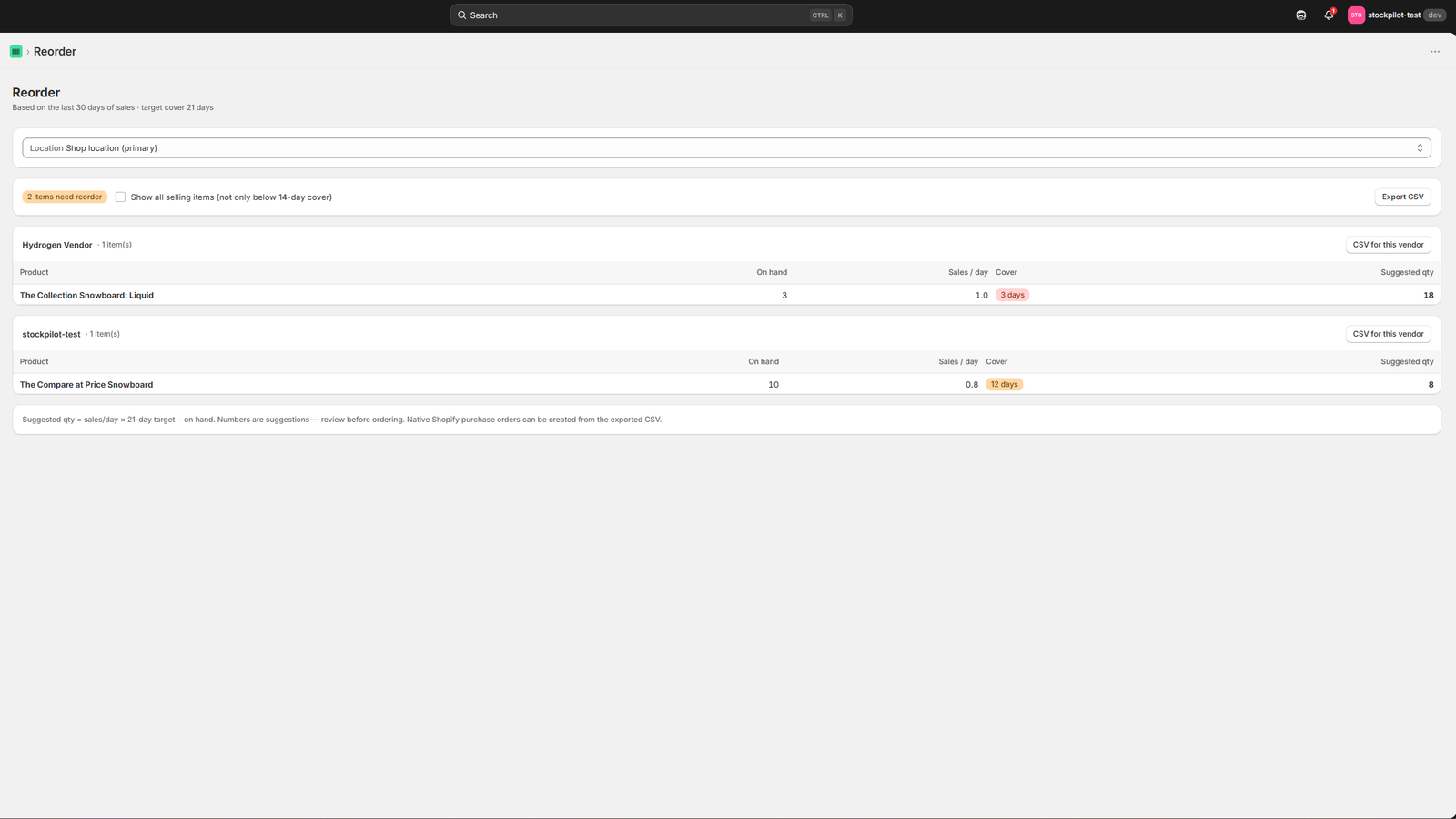
Every reorder point and restock quantity lands here, in one list you look over before anything becomes a purchase order.
Click to enlarge
An actual screenshot of Binly's reorder screen, nothing rendered or mocked up for this page.
The cost of guessing
Reordering by gut feel costs you either way
Whether you're eyeballing a sales report or going by whoever's been at the store the longest, guessing what to reorder tends to go wrong in one of two directions.
Order too late, or order too little, and a fast-selling product sits at zero for days while sales quietly go to a competitor instead (revenue that's hard to notice because it never shows up as a lost sale, just as a gap in your numbers. Order too early, or order too much, and the opposite happens: cash gets tied up in stock that sits on a shelf for months, taking up space and eventually needing a markdown to clear it. Stocky, Shopify's own inventory app, built reorder and forecasting tools to solve exactly this problem) and Stocky has been retired, which is the gap Binly exists to fill.
Understocking: sales you never see
A product hits zero and stays there while nobody's watching. Shoppers who would have bought it just buy something else instead, the lost sale doesn't show up anywhere as a data point, it just never happens.
Overstocking: cash frozen on shelves
Order too much, too early, and the extra inventory just sits, tying up cash you could have spent elsewhere, taking up storage space, and often ending up marked down to finally clear it.
How Binly forecasts
Reorder guidance built from your own sales data
Binly doesn't predict the future, it reads what's already happened in your store and turns that into a number you can act on.
A reorder point for every product
Binly computes a reorder point per product from its recent sales velocity, how many units it's actually been selling, combined with the supplier lead time you set for it, so the threshold accounts for how long a reorder actually takes to arrive.
A restock quantity recommendation
Alongside the reorder point, Binly recommends how many units to bring in, based on that same sales velocity, so you're choosing a quantity with something to go on, not just reacting to a low-stock moment.
Flags before you're already out
Products approaching their reorder point are flagged on your dashboard, the same low-stock alerts that catch a fast mover before it's sold through, not after you've already noticed it missing from an order.
The same reorder screen shown above, quantities update as sales come in, so the list stays current without a manual recalculation.
Getting started
From connect to purchase order in four steps
No setup spreadsheet, no manual history import. Binly starts building your numbers the moment it's connected.
Connect your Shopify store
Install Binly and connect your store. It starts reading your order history right away, with nothing to set up by hand.
Binly learns your sales velocity
As orders come in, Binly tracks how fast each product is actually moving, the numbers your reorder points and restock suggestions are built from.
Review your reorder suggestions
Reorder points and restock quantities land on one screen. You look them over, nothing is ordered without you seeing it first.
One click to a purchase order
Approve the suggestions you agree with and turn them into a purchase order in a click.
Being upfront
Forecasting is guidance, not a crystal ball
Binly's reorder suggestions come from your own sales history and the supplier lead times you tell it about, not machine-learning magic, and not a guaranteed prediction. A brand-new product with no sales history yet, a one-off spike in demand, or a supplier lead time that's changed without being updated will all throw the numbers off, and that's expected.
Every suggestion lands on a screen for you to review, adjust, or ignore before it becomes a purchase order. Binly never places an order on its own, you stay the one deciding what actually gets bought.
FAQ
Common questions
Does Shopify forecast inventory?
Shopify Admin's built-in purchase orders don't include demand forecasting or reorder point suggestions, you'd be estimating quantities by hand from a sales report. Stocky, Shopify's own forecasting-focused app, did offer this, but it has been retired; that gap is what Binly fills.
What is a reorder point?
A reorder point is the stock level at which you should place a new order so replacement stock arrives before you sell out. It depends on two things: how fast a product is selling, and how long your supplier takes to deliver it.
How does Binly know when to restock?
Binly looks at each product's recent sales velocity and the supplier lead time you've set, calculates a reorder point from the two, and flags the product once it's approaching that threshold, so it's a suggestion you review, not an automatic order.
Will Binly place orders automatically?
No. Binly surfaces reorder points and restock quantity suggestions for you to review, you decide which ones to act on and turn into a purchase order. Nothing gets ordered without you approving it.
What if a product doesn't have much sales history yet?
Forecasting is only as good as the sales data behind it. A brand-new product, or one with only a short history, will get a rougher suggestion, it's worth setting the quantity yourself until there's enough order history for Binly's numbers to be reliable.
Stop guessing what to reorder.
See your reorder points and restock suggestions inside Binly.
Start free 7-day trialNo credit card required