The Shopify stocktake app that runs on the phone in your pocket
Count inventory with the camera you already carry, no scanner hardware to buy, no app to install. See live variance in units and dollars, and apply it to Shopify in one tap.
Free plan available. No credit card required to start.
Scan or hand-count
Point your phone's camera at a barcode to log it instantly, or tap in a count by hand for products without one, the same stocktake handles both without switching tools.
Live variance in units & dollars
Every scan compares against what Shopify has on record, so you see the gap building as you count, not just a unit number, but what it's actually worth.
Apply adjustments to Shopify
Review the variance, then apply the whole count to Shopify in a single tap, no exporting to a spreadsheet and typing quantities back in one product at a time.
See it in action
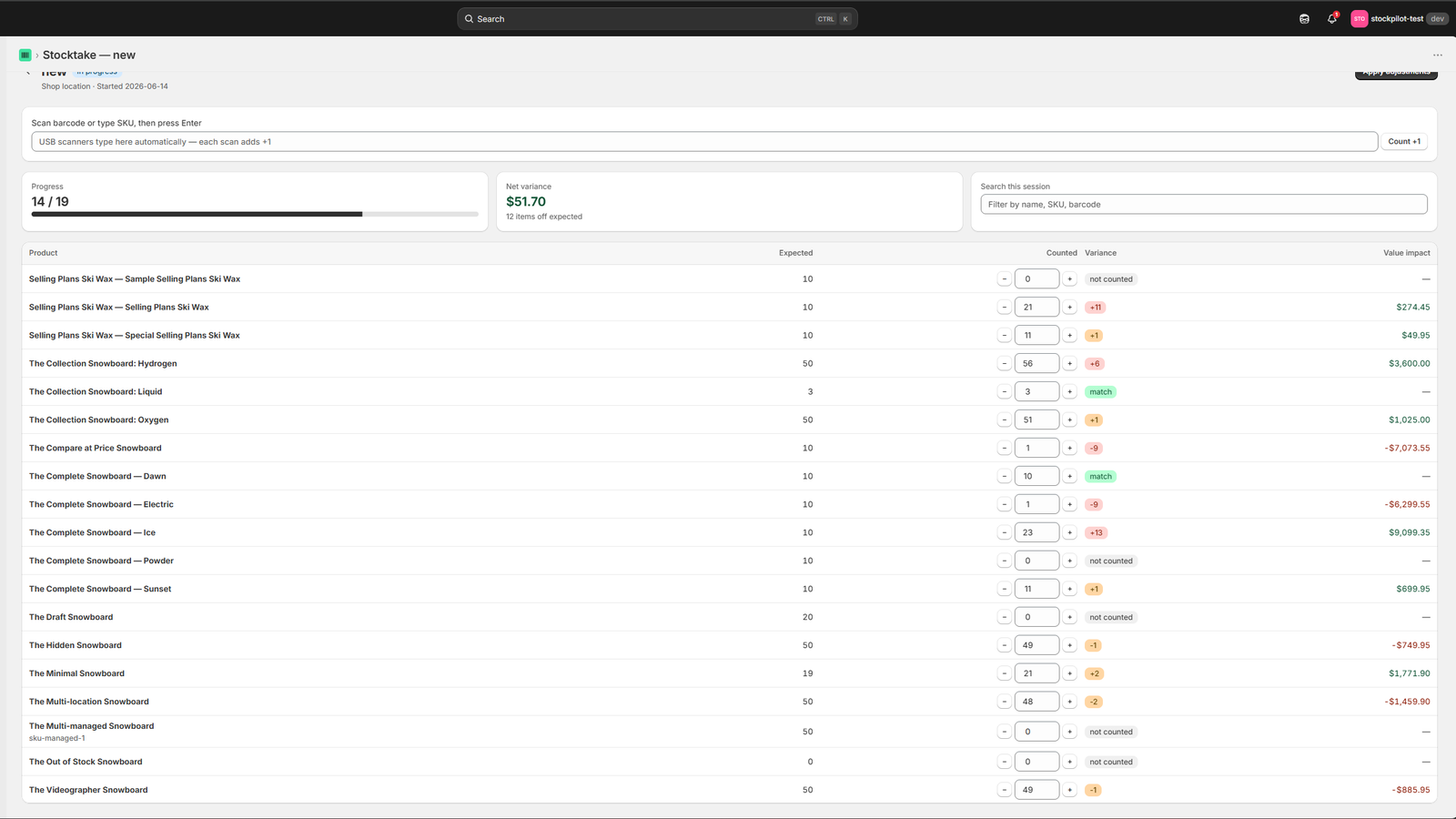
Live variance, right on the count screen
The same screen your staff sees mid-count, scanned quantity, system quantity, and the variance, all in one place.
Click to enlarge
Stocktake results: variance in units and dollars, ready to apply to Shopify.
Most Shopify stocktake apps assume you'll buy a dedicated barcode scanner, or they only handle counting and leave the reconciliation to a spreadsheet. Binly does neither, it's built specifically around the phone your staff already carries, with the variance calculation and the Shopify sync built directly into the same flow, from the first scan to the moment stock levels update.
Each counted line remembers the Shopify quantity at the exact moment you counted it, so a sale or a delivery that lands mid count never disappears when you apply the result. Leave a count open overnight without worry. Binly keeps those sales safe, then reads Shopify again once you apply the count and confirms that every changed line actually matches.
How it works
Three steps, no hardware
Start counting in the time it takes to open a browser tab.
Start a count
Open Binly from Shopify admin on any phone. Pick a location, choose cycle or full count, and you're ready to scan, no software to install, and no waiting on IT to set anything up.
Scan with your phone camera
Point your phone's camera at each barcode. Binly reads UPC, EAN, and Code128 barcodes instantly and logs the count live as you go, so you can see progress building in real time instead of waiting until the end.
Apply variances in one tap
Review the variance in both units and dollars, then apply the whole count to Shopify with a single tap, no spreadsheet exports, no re-typing quantities back into product pages one by one.
See it in action
What counting with Binly actually looks like
Real screens from the app, dashboard, live stocktake, and variance.
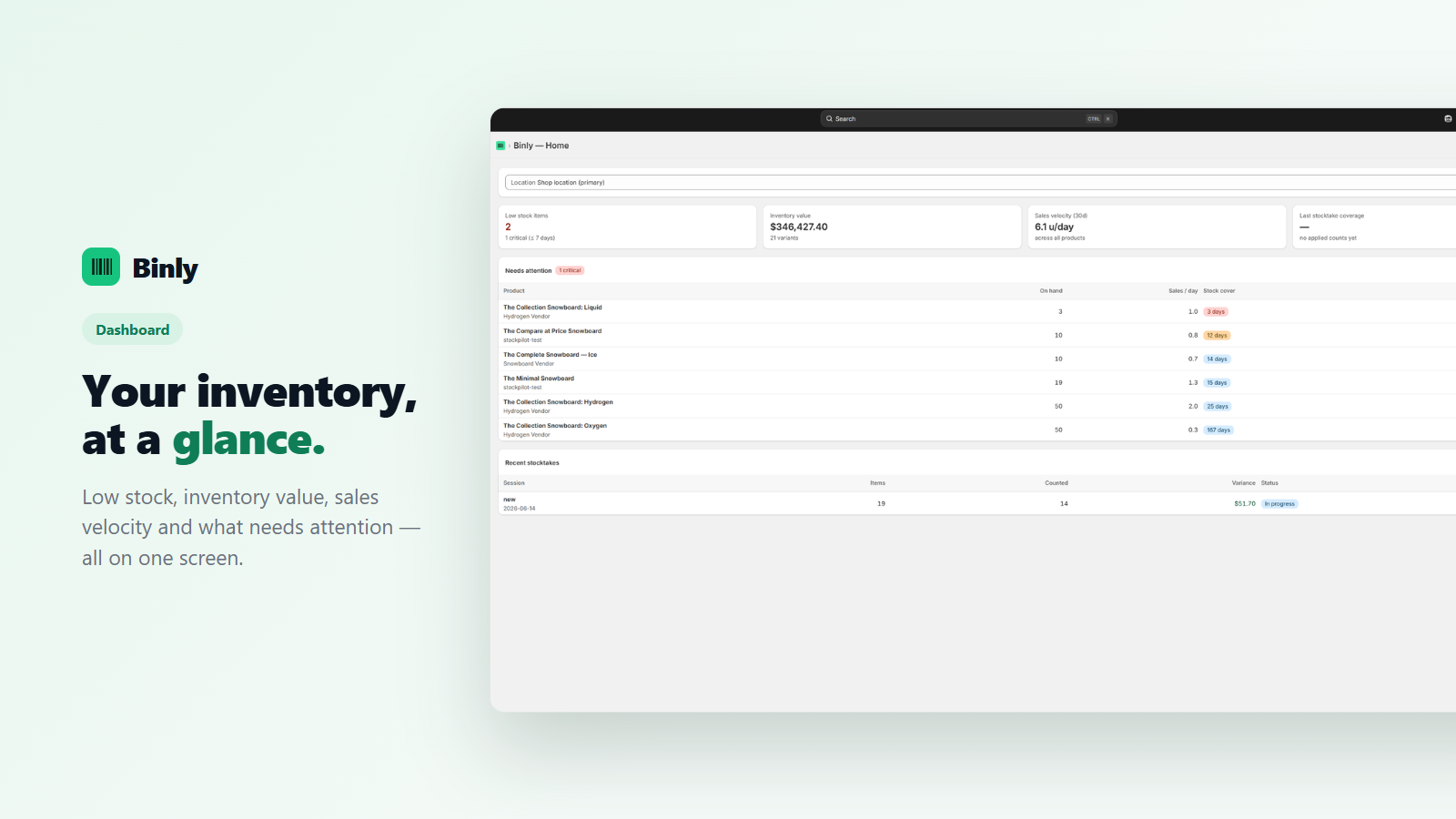
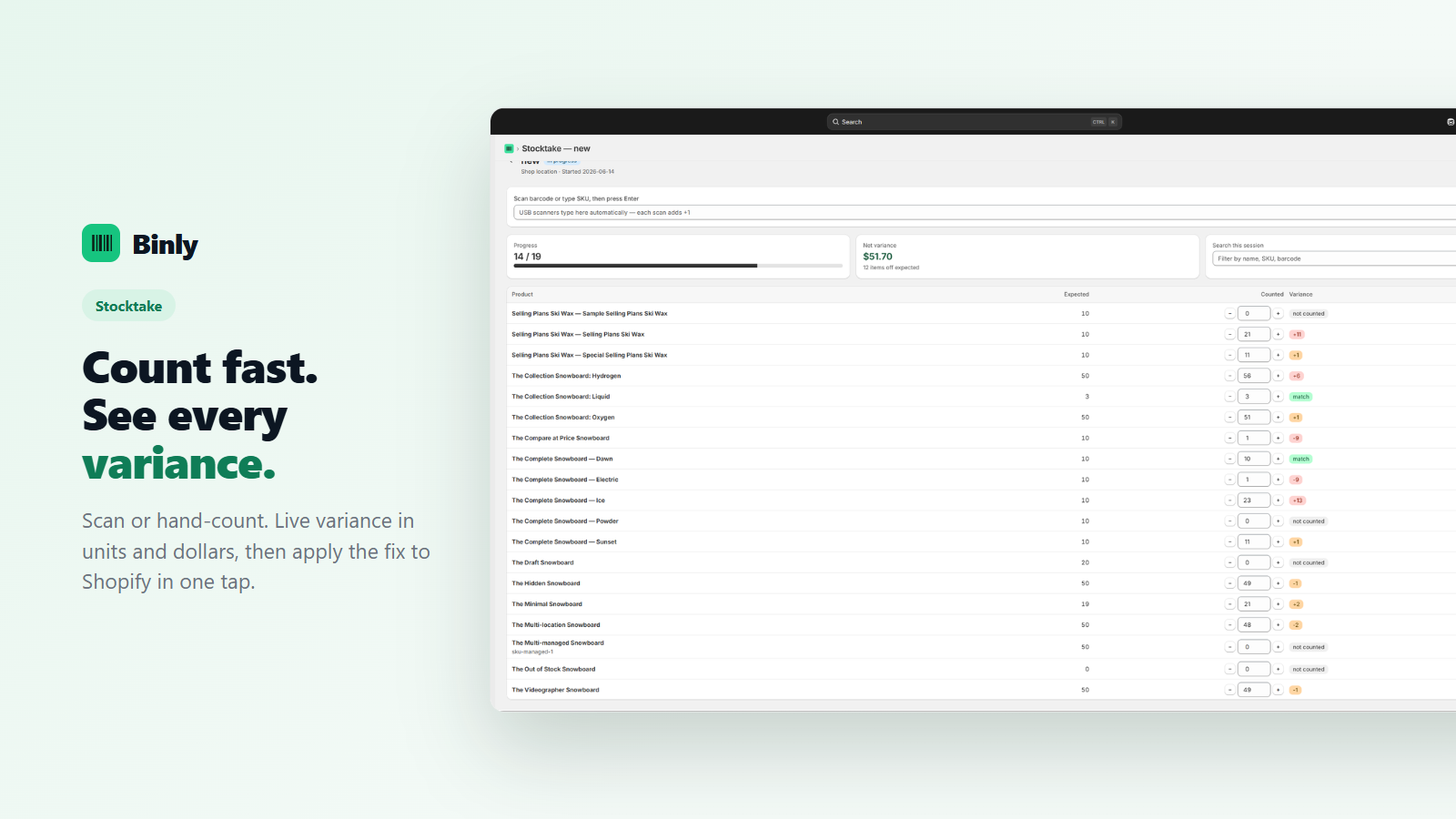
These are the same screens your staff will see mid-count, no separate admin view or desktop-only reporting to piece together afterward. The dashboard, the live count, and the final variance all live in the same phone session.
Why phones beat scanner guns
The scanner you already own
Dedicated barcode scanners work, but they're rarely the best first move for a small or mid-sized store.
$0 vs $300+ per device
A dedicated handheld barcode scanner typically runs $300 or more per unit, before you even factor in cases, charging docks, or replacements when one gets dropped. Every staff member already has a phone in their pocket. Binly turns it into a scanner instantly, at no extra cost.
Staff scan in parallel
On Pro, pair multiple phones to the same stocktake with a QR code. Staff can scan different aisles at the same time, and the count total updates live for everyone, a full-store count that would take one person all day gets done in a fraction of the time with a few extra phones.
Nothing to install
Binly runs in the phone's browser. No app store download, no device management, no charging cradles to keep track of, a new hire can start scanning within a minute of being handed their phone.
Works with scanners too
If you already own USB barcode scanners, they work with Binly as well, you're not locked into either approach, and can mix phones and scanners across the same team depending on what each person prefers.
Live variance
See exactly what's off, in units and dollars
Every scan compares against Shopify's recorded stock in real time, so you know the dollar impact, not just the unit count, useful for spotting shrinkage trends before they become a real problem.
Count your way
Cycle counts or full counts, your call
Binly supports both, so you can match the count to how disruptive it can be. Neither requires special setup, the difference is just how much of your catalog you include.
Cycle counts
Count a section, category, or single vendor's products on a rolling schedule. Fast and low-disruption, ideal for weekly or biweekly checks on high-turnover items, or for keeping an eye on products that tend to drift out of sync between counts.
Full counts
Count your entire catalog in one sweep. Typically done once a quarter, at year-end, or right after a big receiving day to reset your baseline, a good fit when you want full confidence in every number before a busy season.
A full stocktake and a cycle count use the same counting screen. Scope is the only difference. Start a count on one shelf, one vendor, a category or a saved list such as your top sellers, and leave the rest of the catalog alone until the next round comes up. Shopify itself keeps one quantity per variant. You can edit it one variant at a time or overwrite it with a CSV import. There is no built-in way to scope a count, compare scans with the system quantity or see variance. If you relied on Stocky's counts, note that Stocky stopped working on August 31, 2026. Binly runs a full count in one pass. It also counts one shelf at a time. Selling while you count? Here is how sales that land mid count are kept.
| Full count | Cycle count | |
|---|---|---|
| Scope | Every SKU at a location | One shelf, vendor, category or saved list |
| When | Quarterly, at year end, or after a big receiving day | Weekly or biweekly, on fast movers |
| Disruption | Higher, often run outside opening hours | Low, fits into normal trading |
| In Binly | The same count screen | The same count screen, scoped smaller |
Shopify POS
Counting in a Shopify POS store
Stock in a shop sits in more than one place. A rail, a fitting room and a stockroom are three jobs, not one. Plan them that way.
- Decide what belongs in the count before anyone scans. Binly counts a shelf, a section or the whole store, so pick the slice first.
- Give each person a clear boundary. The pile behind the register should not be counted twice.
- Read the variance report before you apply. If one size is short and another is high, check the labels and the hooks next to it.
- Free and Starter count one location. Pro counts every location, supports transfers and lets several phones scan into the same count.
- Binly works with Shopify POS stores on any Shopify plan. You do not need POS Pro.
Comparison
Binly vs manual counting vs scanner hardware
A straightforward look at the three ways to count Shopify inventory, side by side, so you can see where the time and money actually goes.
| Feature | Manual counting | Scanner hardware | Binly |
|---|---|---|---|
| Cost to get started | Free, but slow | $300+ per device | Free plan available |
| Speed | Slowest, error-prone | Fast | Fast: scan with your phone camera |
| Staff scanning in parallel | Only with printed sheets | Only if you buy more scanners | Yes, QR pairing, no extra hardware |
| Variance vs Shopify | Manual reconciliation | Manual reconciliation | Automatic, live in units & dollars |
| Setup | None, but slow to run | Device provisioning & charging | None: works in the browser |
Manual counting and scanner hardware both work, plenty of stores run one or the other today. The tradeoff is either your team's time (manual) or a hardware budget and provisioning process (scanners). Binly is built to remove both tradeoffs at once.
Free plan
Is there free stocktake software for Shopify?
Yes. The free plan covers stocktakes on your full catalog, with no product cap. You get one location, phone barcode scanning, live variance in units and dollars, and low stock alerts. It is a plan, not a trial. No card needed.
Paid plans add more. Starter ($12 a month) brings purchase orders and receiving, Pro ($25) adds every location and landed cost, and Growth ($69) adds supplier price lists. Each paid plan starts with a 7-day free trial that is separate from the free plan.
Not sure what you need? Count one real shelf on the free plan first. See what is missing. If you count on a sheet today, our free stocktake spreadsheet checklist covers what to track.
Pricing
Simple, transparent pricing
Start free. Move up to Starter, Pro, or Growth as you need more products, locations, or purchase order and supplier tools. 7-day free trial on paid plans, no credit card required, and you can move between plans as your store grows.
Free
forever, no card
- Full catalog, no product cap
- 1 location
- Phone barcode scanning
- Live variance
- Low-stock alerts
Starter
per month, or $120 a year
- Up to 500 products, primary location
- Phone + USB scanning
- Purchase orders, suppliers & receiving
- Reorder suggestions
- Barcode label printing
Pro
per month, or $250 a year
- No catalog cap
- All locations & transfers
- Landed & weighted-average cost
- Inventory value report
- Order-by dates from real lead times
- Priority support
Growth
per month, or $690 a year
- Everything in Pro
- Supplier price lists
- Early-pay savings
- Month-end COGS pack
7-day free trial on paid plans. No credit card required to start.
FAQ
Common questions
Does the stocktake app work on iPhone and Android?
Yes. Binly runs in your phone's browser on both, so there is nothing to download from an app store, and you can open it from Shopify admin or a QR code and start scanning straight away. It reads UPC, EAN and Code128 barcodes. USB scanners work too.
Is there free stocktake software for Shopify?
Yes. The free plan includes stocktakes on your full catalog, one location, phone barcode scanning, live variance and low stock alerts. Paid plans start at $12 a month with a 7-day free trial, and no credit card is needed to start.
What is the difference between a cycle count and a full stocktake?
A full stocktake counts the whole catalog in one pass. A cycle count covers one shelf, vendor or category and runs more often. Binly uses one counting screen for both. Only the scope changes.
Does Shopify have a built-in stocktake?
Not a counting workflow. Shopify keeps one quantity per variant, which you can edit directly or overwrite with a CSV import, but it has no built-in way to scope a count, compare scans with the system quantity or show you variance. Binly adds that layer on top.
How many phones can scan the same stocktake at once?
On Pro, as many as you have staff for. Pair more phones to the same count with a QR code and every scan rolls up into one live total. Free and Starter use one phone at a time, plus a USB scanner or typing on the computer.
Does the count apply to Shopify automatically?
Only after you review the variance, and then it is a single tap. Each counted line remembers the Shopify quantity at the moment you counted it, so a sale or a delivery that lands in the middle of a count is still there when you apply the result.
Can I count while the store is open?
Yes. A count can stay open overnight. Binly keeps the sales that land mid count, then reads Shopify again when you apply and checks that every changed line matches. Our guide to counting inventory while you sell covers the routine.
Count faster. Reorder smarter.
Start your first stocktake in minutes, no hardware to order, nothing to install.
Start free 7-day trialExplore all of Binly's features on the homepage, or coming from Stocky? See the alternative →