A Shopify barcode label app that scans them back in, too
Generate a Code-128 barcode for any product, print a label sheet for Dymo, Zebra, or Avery, then scan that same barcode with your phone to count stock during a stocktake, no scanner hardware to buy, no SKU typed in by hand.
7-day free trial. No credit card required.
Code-128 labels for Dymo, Zebra & Avery
Generate a barcode for any product and print a label sheet sized for Dymo, Zebra, or a regular printer with Avery sheets.
Scan to count in a stocktake
Open a stocktake on your phone and scan barcodes instead of typing SKUs, no separate scanner hardware to buy.
Fewer manual-entry errors
Scanning picks the exact product every time, cutting out the transposed-digit and mistyped-SKU mistakes that come from typing counts by hand.
The problem with manual counts
Typos start with a label that was never machine-readable
Counting stock by reading a printed price tag and typing the number in by hand is slow, and every retyped SKU is a chance for a mistake to slip into your inventory.
Not every product arrives from a supplier with a barcode already on it, and Shopify Admin has a barcode field on each variant but no built-in way to generate one, lay it out as a label, or scan it back in during a count. Stocky, Shopify's own inventory app, covered both of those jobs, printing labels and scanning them for stocktakes, and Stocky has been retired, which is the gap this page is about.
What manual counts look like
- Reading a printed tag or handwritten note, then typing the SKU into a stocktake spreadsheet, one line at a time
- A single transposed digit turns into a phantom variance that isn't caught until a second recount
- Products without a printed barcode can't be scanned at all, they have to be counted by typing, every time
What Stocky's barcode tools covered
- Stocky could generate a barcode for a product that didn't ship with one and print it as a label
- Stocky's scanner mode let staff count stock by scanning instead of typing each SKU
- Both are part of Stocky, which was delisted from the Shopify App Store Feb 2, 2026 and stopped working entirely Aug 31, 2026
Compare
Typing counts vs scanning labels
Why a printed barcode pays for itself on the first count.
| Typing counts by hand | Scanning Binly labels | |
|---|---|---|
| Speed | One line at a time | One scan per unit, the count updates as you go |
| Typos | A transposed digit becomes a phantom variance | The scan picks the exact product every time |
| Products with no barcode | Typed in every time | Generate a Code-128 barcode and print the label once |
| Hardware | None | Phone camera, or a USB scanner if you own one |
How it works
Print a barcode label, then scan it back in
Two halves of the same job: generating and printing a barcode, and using that barcode to count stock faster and more accurately.
Printing labels
Generate a Code-128 barcode for any product
Pick a product or variant
Select any product in your Shopify catalog, including ones that never shipped with a barcode from the supplier.
Binly generates a Code-128 barcode
Code-128 is a standard barcode symbology, readable by handheld scanners and phone cameras alike.
Print a sheet for Dymo, Zebra, or Avery
Pick a layout sized for a Dymo or Zebra label printer, or an Avery sheet that prints on any regular laser or inkjet printer.
Scanning barcodes
Use that same barcode to count stock
Scan with your phone
Open a stocktake in Binly on any phone browser and point the camera at a barcode, no separate scanner hardware to buy, no app to install.
Counts update as you scan
Each scan adds to the running count for that product, visible right away while you're still standing in the aisle.
Fewer typos, fewer phantom variances
Scanning picks the exact product every time, cutting out the transposed-digit and mistyped-SKU errors that come from typing counts in by hand.
See it inside Binly
The label screen, before you print
Pick a product, generate its Code-128 barcode, and choose a Dymo, Zebra, or Avery layout, all from one screen.
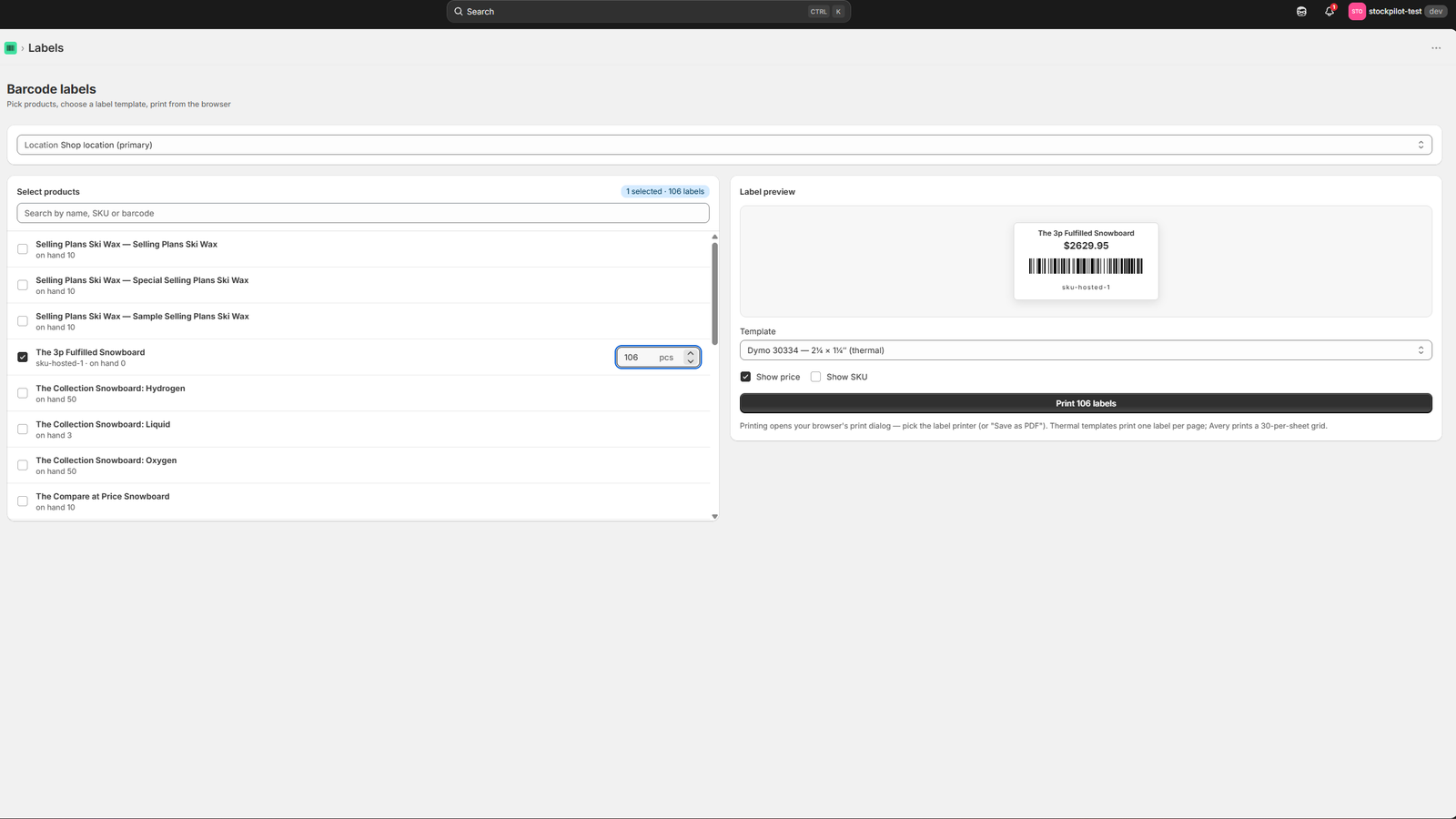
Click to enlarge
The real Binly label screen, pick a layout, then print a sheet for Dymo, Zebra, or Avery.
Where labels and scanning fit
The same barcode runs through your stocktakes and purchase orders
Printing and scanning aren't standalone tools, the barcode you generate here is the same one used everywhere else in Binly.
Once a product has a barcode, whether it shipped with one or you printed it in Binly, that barcode is what gets scanned during a stocktake to count stock, and what gets scanned to receive a purchase order against a delivery. It's the same barcode and the same product record throughout, so a label printed for a stocktake works just as well the next time that product comes in on a PO.
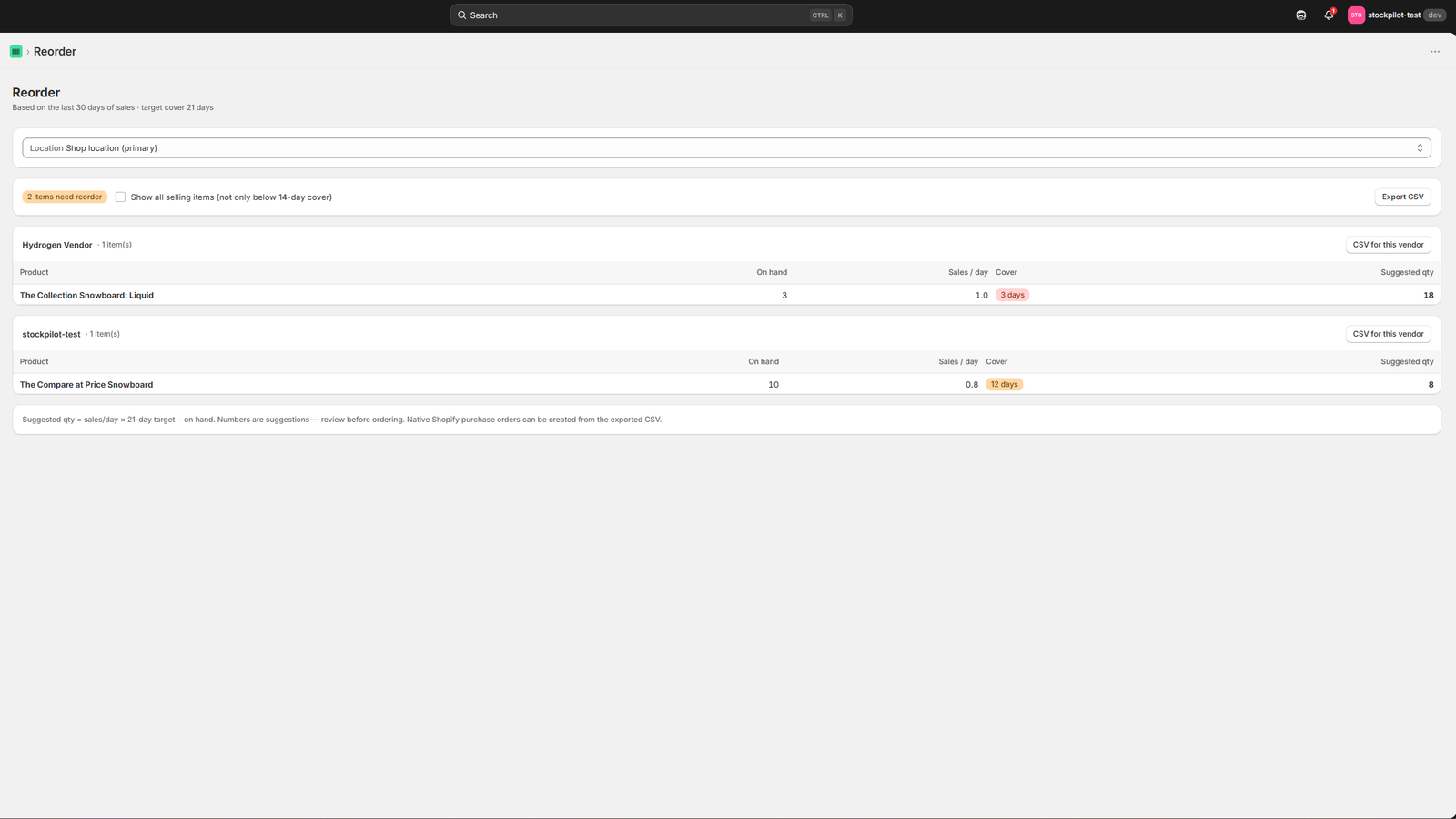
Reorder suggestions in Binly are calculated from the same product and sales data that barcode scanning feeds into during a stocktake.
Coming from Stocky
If you're used to Stocky's label printing and scanner
Stocky's barcode tools covered the same two jobs, printing labels for products that needed one, and scanning to count stock. Binly picks up both.
Stocky itself stopped working on August 31, 2026, so any barcode workflow you built around it (printing labels, scanning stocktakes) needs a new home now, whichever replacement you choose. There's no separate export step for barcodes specifically: a barcode belongs to the Shopify product record, not to Stocky, so it's still there. What went away is the tool that generated new ones and the app that scanned them.
Pricing
Barcode labels and scanning, included in Starter
Not a separate add-on, part of the same plan as purchase orders and reorder suggestions.
FAQ
Common questions
Does Shopify have barcode label printing built in?
Not as a print tool. Shopify admin has a barcode field on each variant, but no built-in way to generate a barcode for a product without one, lay it out as a label or print a sheet. Binly fills that gap. Stocky used to.
What barcode format does Binly use?
Code-128, a standard symbology that handheld scanners and phone cameras both read.
Do I need scanner hardware to count stock?
No. The scanning screen works from your phone's camera in the browser, on iPhone or Android, with nothing to install. A USB scanner works too if you already have one.
Can I print on a regular printer, or do I need a label printer?
Both work. Binly has layouts for Dymo and Zebra label printers, plus Avery sheet layouts that print on any standard inkjet or laser printer you already have in the office.
Does scanning during a stocktake update Shopify automatically?
Yes, once you apply the count. Scans build up a stocktake in Binly. Applying it posts the counted quantities to Shopify inventory with no separate adjustment step. See the Shopify stocktake app.
Is barcode label printing on the free plan?
No. Label printing is part of Starter, from $12 a month, with a 7-day free trial and no credit card to start. The free plan includes stocktakes with phone barcode scanning, plus low stock alerts.
Can I scan the same labels to receive a purchase order?
Yes. The barcode you print is the same one you scan to count stock, and the same one you scan to receive a delivery against a PO, all on one product record. See the Shopify purchase order app.
Barcodes that print, and scan back in.
Stocky shut down on August 31. Print your first label sheet in Binly today.
Start free 7-day trialNo credit card required